IntelliVision Merchant Operating Manual
The authoritative operational guide for store managers, cashiers, and accounting personnel. Covers initial store onboarding, daily till workflows across 28 specialized industries, double-entry financial compliance, and zero-lock-in data management.
🚀 'Your First Day' Walkthrough
Follow these sequential numbered steps to take your store from a fresh installation to your first rung sale, printed receipt, and balanced cash drawer. Every step references the exact operational screen in IntelliVision.
Sign In & Role-Based Access
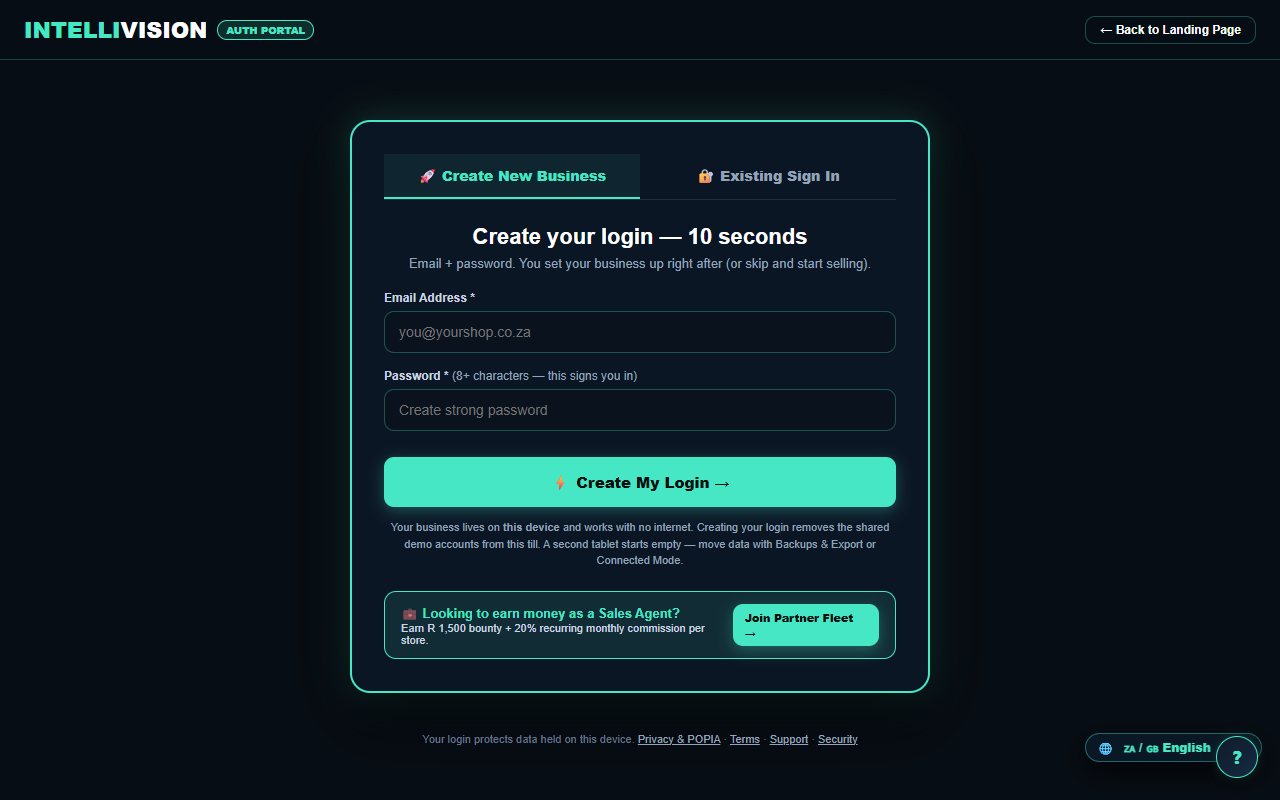
Open auth.html in any modern browser. It shows two tabs: Create New Business and Existing Sign In, switched instantly with no page reload. A visitor who arrived by tapping a "Try the demo" link, or who was bounced off a page that requires sign-in, is shown a one-tap Open the Demo Till banner above the forms instead of being pushed straight at a password box.
One sector sign-in page names its tabs differently and behaves differently too: restaurant_auth.html shows "Sign In" and "Register New" tabs, but tapping "Register New" never reveals a local form — there isn't one on this page — it immediately redirects you to this same real auth.html signup, with the restaurant sector carried in the link. That makes it an honest shortcut rather than a broken control, just a differently-built one from the global tab switch above.
Creating your real owner login
The sign-up form is deliberately two fields — email and an 8+ character password. Submitting it calls the real registration engine: your password is hashed on your device (see PBKDF2 below), the account is written, and you are signed straight in. The moment that real login exists, the shared demo accounts are deleted from this device forever — demo mode does not coexist with a real business.
Signing up also creates your merchant tenant record — a random
MERCHANT-NNNNN id, your email, ZAR as the default currency, and VAT-registered defaulting to
No until the wizard asks — and hands you straight to the Setup Wizard in Step 2.
Which sector page you clicked "Sign Up" from is remembered (from the link's
?industry= parameter, or failing that from the page that referred you) and pre-fills the
wizard's industry step — shown on-screen as "Setting up: <Sector> — you can change this in setup"
so nothing is silently decided for you.
Signing in with an existing login
Sign in with your registered email, username, or phone number, plus your password — all three identifier types are actually checked, not just email. Don't have a login yet? The "Create your owner login" link on every sector sign-in page routes to this same real signup, with your sector pre-filled in the URL.
Submitting the sign-in form calls the real authentication engine:
every one of the 28 sector sign-in pages (e.g. retail_auth.html) runs the identical
call — type your credentials, press Sign In, and you land in that sector's workspace.
A wrong username or password shows one generic message — it never reveals which field was
wrong, so a shared till doesn't leak which usernames are real.
If you arrived here bounced off a protected page (the URL carries ?next=), a successful
sign-in sends you straight back to that page instead of dropping you at a generic home screen.
Tick "Remember me on this device for 30 days" on your own tablet and you won't have to sign in again until the month is up; leave it unticked on a till the whole team shares. Typed the wrong email into the sign-up form and want to sign in instead? The error message under a clashing sign-up offers a "Sign in instead" link that switches tabs and carries your typed email across so you don't have to retype it.
Try before you buy: demo mode
owner / Owner!2026, Cashier: cashier / Cashier!2026.
The "Open the Demo Till" button signs the demo owner in with zero typing
— no password box, one tap.
The moment you create your real owner login, both demo accounts are deleted from that device
and these published passwords stop working there; a business already running on the device also hides the button.
Passwords are stored only as salted PBKDF2-SHA256 hashes (100,000 iterations), computed and verified directly on your device — the password itself is never written anywhere.
Role-based access fails closed: every page checks your session before it renders, and a role without the right capability never sees the page at all — its content is replaced, in full, by a red "Access Restricted" panel naming your role, with a single Sign out button as the only way off it. There is no partial peek and no redirect back to the till; the deny screen is the whole page.
What "manage / sell / view" actually means
Every account has exactly one role — Owner, Manager, Cashier
or Staff — and every role maps to a fixed set of capabilities: Owner and Manager get
manage + sell + view, Cashier gets sell + view, Staff gets view only.
Which capability a page needs is decided purely by matching the filename, not by
checking individual buttons on the page: anything containing _setup, _accounting,
vat201, fixed_assets, multibranch, payroll,
data_export or team_logins needs manage; anything containing
_pos, _till, checkout or grv_receiving needs
sell; everything else only needs view.
Practically: a Cashier can ring sales and see dashboards, but every Setup screen, Team & Logins,
payroll, VAT201, the fixed asset register, and every multi-branch page are Owner/Manager-only —
including the Setup Wizard and Camera Manager covered later on this page.
Sales agents: joining the partner fleet
A "Looking to earn money as a Sales Agent?" panel sits under the sign-in and sign-up forms on the main auth.html door, linking to the real partner sign-up flow (sales_rep_signup.html) — a separate application from a merchant account. The 28 sector-branded sign-in pages do not carry this panel; reach it from the main sign-in screen.
hardware_accounting.html — a manage-only screen — where the fail-closed check replaces the page
with the Access Restricted notice. The tile chose the destination; it did not grant the role.
Master Setup Wizard
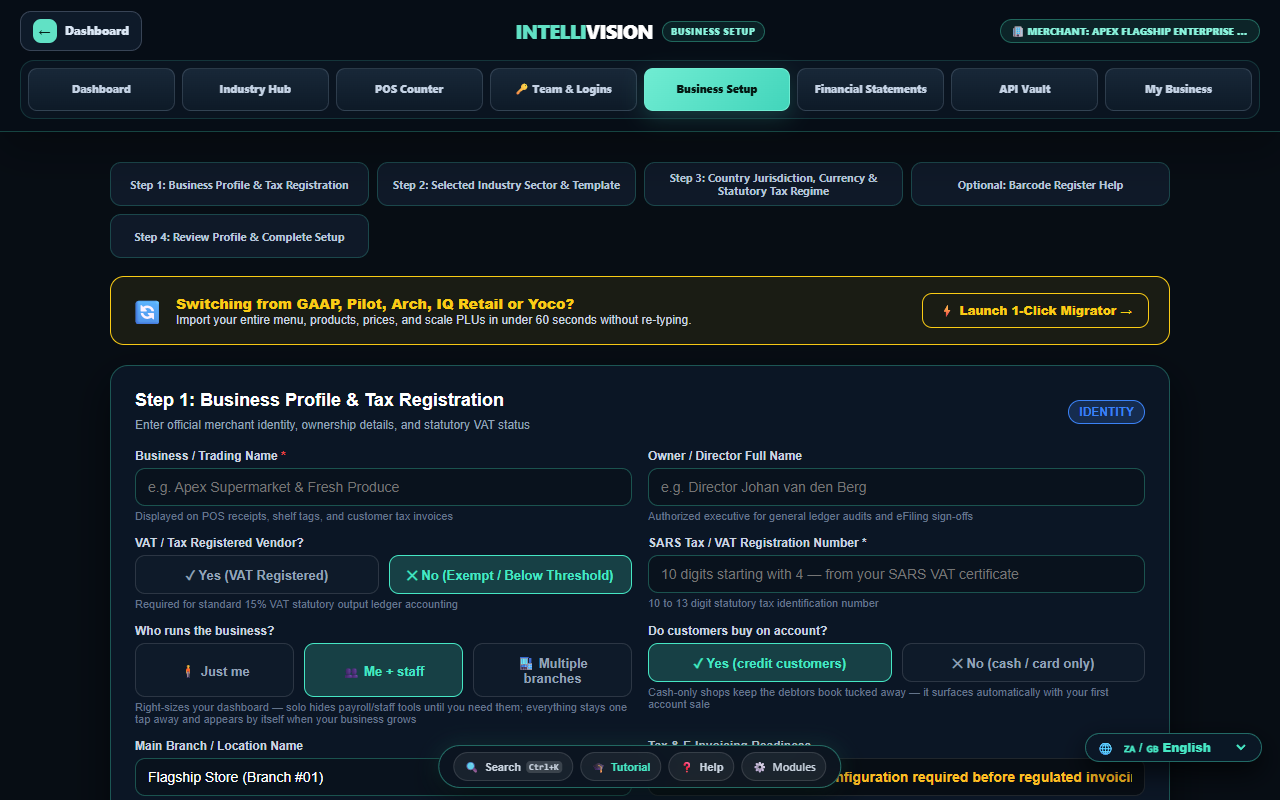
After signup you land in master_setup_wizard.html — the one setup screen in the product that actually saves what you type. It runs four numbered steps top to bottom on one page (not a click-through wizard), followed by a launch bar and an onboarding checklist.
Step 1: Business Profile & Tax Registration
Enter your trading name and owner/director name, then answer "VAT / Tax Registered Vendor?" — choosing Yes reveals the VAT number field and makes it required; a South African number must be exactly 10 digits starting with 4, checked before launch. "Who runs the business?" — Just me / Me + staff / Multiple branches right-sizes what your dashboard shows: solo hides payroll and staff tools until you need them, and every hidden tool still appears by itself the moment reality calls for it — your first staff member surfaces payroll, your second branch surfaces multibranch. "Do customers buy on account?" turns the debtors book on or off — No keeps it tucked away until your first account sale surfaces it automatically. A branch/location name and a read-only e-invoicing law field (set from your country in Step 3) round out this step.
Step 2: Industry Sector Template
Pick one of the 28 sector pills (Retail, Restaurant, Hardware, Butchery, Petrol, and so on) — one is always active, pre-selected from your sign-up page when known. Your choice drives which POS and dashboard the launch button opens and which checklist links appear below.
Step 3: Country, Currency & Camera Link
Choose your operating country from a 15-entry list (South Africa/SARS through UK/HMRC, EU/OSS and US state tax) and the VAT/GST rate, currency, and the tax-number field's label all update to match — e.g. selecting Kenya relabels the field for KRA and switches the rate to 16%.
Step 4: Review & Launch
A review grid mirrors back your trading name, owner, industry, country/currency, VAT status and branch before you commit. Pressing Save & Open Industry Dashboard validates the form (business name and VAT number format, if applicable), writes your tenant record, and takes you straight to your sector's POS — the button relabels itself to name the exact sector once saved. Not ready to fill all of it in? Skip for now writes a minimal, honest tenant record — your typed business name if you gave one, your sector, "Skip" recorded — and opens My Business directly; nothing here is invented on your behalf.
Post-setup onboarding checklist
Four milestones — import your products, ring your first sale, print a test receipt, meet your dashboard — each with a link to the right screen and a checkbox you can tap to mark it done or undone yourself. Only one of the four checks itself, and only on page load: every time you (re)open this wizard, it looks for a real (non-history, non-sample) order in your database and, if one exists, silently flips "Ring your first sale" to done — it does not update live while you're on the till. The other three are entirely self-reported, so ticking "Print a test receipt" records that you say you did, not that a printer actually fired.
Sector "Business Setup" Screens Are Concept Previews
retail_setup.html, hospitality_setup.html,
agriculture_setup.html, and so on) opens with its own honest banner:
"Design preview — this screen is a concept render, not a working tool yet. The working business
setup lives at Business Setup (the real wizard)." Nothing you configure on these pages is saved —
treat them as a look at what richer, sector-specific setup will eventually look like, and use the
Master Setup Wizard from Step 2 above for the setup that actually
takes effect.
On the retail-style layout (used by retail, and equivalent pages for other product-heavy sectors): a "1-Click Quick Start (Tiny Shop / Corner Mart)" button shows a success message and sends you to the sector's POS, without writing any configuration; three "Business Scale" tier cards (Tuck Shop / Independent Store / Enterprise Chain) visually highlight your pick but nothing downstream reads it; module accordions expand and collapse on click to show or hide their settings; the first checkbox in each module flips its badge between "Active" and "Skipped" on screen only, while the second checkbox in each module (Bettcher recipe display, SMS alerts, exit turnstile) has no handler at all and does nothing when clicked; the trading-name and VAT-number fields accept typing — the trading-name field is read only to echo it back in the confirmation message, and the VAT-number field is never read at all; neither is written to any configuration; and "Save Configuration & Launch Workspace" shows a confirmation message naming whatever you typed as the store name, then opens the sector dashboard — the message, not a database write, is the entire effect.
The hospitality-style layout (used by hospitality/guest-house pages) is the same story in miniature: "1-Click Quick Start (B&B / Guest House)" shows a success message and opens the front-desk POS, and "Save Configuration & Launch Hotel Dashboard" shows a "Hotel Setup Saved" message and opens the dashboard — again, neither writes anything.
Every sector setup preview's own banner links straight to the real Master Setup Wizard — that link is the one control on these 28 pages that reliably takes you somewhere useful; use it instead of the preview's own buttons.
A "Fixed Asset Register" button in the retail setup header opens
fixed_assets_register.html — a real page, but as with several `*_setup` companions its
"Register new asset" and "Post depreciation" controls currently show a confirmation message rather than
writing to the ledger; documenting that page's own add/post functions in full belongs to a different
package (they carry the separate assets.register.* function family), so only the act of
opening it is covered here.
Camera & Device Manager
Both "+ Add New Camera / Device" in the header and "+ Add Camera (IP / RTSP)" in the provisioning bar open the same form, pre-filled with a randomly generated camera ID and a placeholder IP, asking for a name, mounting location, an AI purpose from a 12-option list, IP/port, and a confidence-sensitivity slider. Clicking "Edit" on any of the four example cards opens the same form pre-filled with that card's hardcoded details so you can see the fields in context.
Submitting the form ("Save & Deploy Camera AI") shows a confirmation alert repeating back what you typed, including an invented "Calibrated to 30 FPS Edge" line, then closes the dialog — the camera list on screen does not change; nothing you entered is added to it or saved anywhere. "Scan LAN (ONVIF Auto-Discover)" shows the same two hardcoded "discovered" cameras every time it is pressed, regardless of what is actually on your network — it does not perform a real scan. The × button and the form's own Cancel button both simply hide the dialog with no confirmation and no save.
For pairing a camera that actually works, this is the wrong page: the till's own camera (Vision Live) and a real IVOPS Vision kit (Edge Node pairing) are genuine, gate-proven features documented in the Vision chapter of this manual — this screen is not how either is set up today.
Import From Your Old POS System
Bring a complete business pack—or run a deliberately limited quick import—from Square, Loyverse, Yoco, GAAP POS, Pilot Software, Arch Retail, IQ Retail, Lightspeed (Vend), Shopify POS, Clover, iKhokha, Sage Pastel, a local export folder or a spreadsheet. The complete route reconciles structured records before writing and retains every selected source row, including vendor-specific fields it cannot safely map.
Two migration lanes work together on pos_connect.html. Complete Business Migration is the cutover route for the whole business. The vendor API and CSV shortcuts are quick connections for products, customers and sales history where exposed; they are not presented as a full changeover. The older legacy_pos_migration_portal.html remains the quick CSV upload-or-paste screen.
Route 1 — Complete Business Migration
A complete pack can map branches, disabled-until-activated staff, products, prices, stock and batches, customers/debtors, suppliers/creditors, purchases and GRV lines, supplier payments, sales receipts, item lines, tenders, returns, chart of accounts, balanced ledger entries, VAT history, loyalty, gift cards, payroll and settings. Open laybys, quotes, sales orders, job cards, bill-of-quantity records, promotions, bank reconciliations, budgets, assets, report definitions, audit history and other unmatched vendor tables are retained with their original source fields; preservation does not pretend that a corresponding live IntelliVision workflow exists.
Sales need the receipt header, every item line, tender breakdown and returns/credit notes for the full date range—not merely a daily or receipt total. One detailed CSV containing receipt reference, date, product, quantity and line total is split into reconciled receipt and item records automatically; explicit tender rows are deduplicated by their source reference. Preflight shows missing detail before anything is written.
The source picker below still helps you: tell it which system you're coming from and it routes you automatically identify the right source. Use Complete Business Migration for a cutover; use the quick portal only when the merchant intentionally wants the smaller product/customer/sales-history move.
| Your old system | How you bring it across | What to expect |
|---|---|---|
| Square | API token, or CSV | Products, customers, sales history and staff roles all pull across. |
| Loyverse | API token, or CSV | Same four data classes pull across; staff import too. |
| Lightspeed (Vend) | API token + store prefix, or CSV | Staff import too. Accounts opened after 16 Jan 2026 need a private-app credential instead of a personal token. |
| Shopify POS | API token + shop subdomain, or CSV | The only API connection that also brings stock-on-hand across. |
| Clover | API token + Merchant ID, or CSV | Staff import too. |
| Yoco | Guided export | One click opens your own Yoco portal; export, then drop the files in. |
| iKhokha | Guided export | One click opens your own iK Dashboard; export, then drop the files in. |
| GAAP POS | Guided complete export or quick CSV | For cutover, collect products/stock, full receipt and line history, tenders/returns, debtors, creditors, purchasing, branches/staff, tax and accounting exports plus the original backup. |
| Pilot Software | Guided complete export or quick CSV | Same full-business checklist; the quick route remains intentionally limited. |
| Arch Retail | Guided complete export or quick CSV | Same full-business checklist; the quick route remains intentionally limited. |
| IQ Retail | Guided complete export or quick CSV | Collect Stock Master; POS/invoice headers, item lines, VAT, tenders, voids and returns; debtors/creditors with transactions and allocations; purchasing/GRVs; ledger/cash book/VAT; branches/users/settings; and every optional module in use. |
| Sage Pastel | Guided complete export or quick CSV | Collect inventory, customers, suppliers, detailed sales/purchases, payments/returns, ledger/tax history and settings. |
| Excel / spreadsheet | Paste straight in | Copy your cells with the header row, paste, fix anything, import. |
| Anything else | Complete local folder, or Generic CSV | Select all readable CSV/TSV/JSON/SQLite exports. Recognised classes map; unmatched tables remain in the retained source archive instead of disappearing. |
Quick route A — Connect directly by API
Direct API connect with legacy POS accounts (Square, Loyverse, Lightspeed/Vend, Shopify, Clover): open Connect Your Old POS, paste one token, approve each data class, and products, customers and sales history import duplicate-proof (Shopify includes stock-on-hand) — other systems follow the guided export recipes on the same page, with one-click buttons that open YOUR vendor portal's export screen (your login never touches us).
- Test connection — before anything is fetched, press this to prove the token actually works. IntelliVision checks it live against IntelliVision's own relay service and tells you plainly if it can't reach your account — nothing is pulled until this passes.
- Fetch my data — a preview only, nothing is written to your books yet. Live counts tick up per data type as it runs. It pages through your ENTIRE account, not just the first screen — a large catalogue comes across whole, not truncated at page one.
- Tick what to bring in — Products, Customers, Sales history, Staff & roles. Anything left unticked is never pulled into IntelliVision.
- Import now runs each ticked class through the exact same zero-loss, duplicate-safe engine as every other route on this page — an API pull gets no shortcuts around validation.
Where the vendor shares it (Square, Loyverse, Lightspeed, Clover), your staff and their roles import too — sign-in disabled until you set each password on Team & Logins, and a vendor "owner" becomes a manager here, never a second owner. And Business Setup opens pre-filled from what was found: shop name, team size, account customers detected — all waiting for your one final review before launch.
Quick route B — Read product/customer/sales files right off this machine
If the old till is on this same machine, choose This same computer instead: pick its export folder and IntelliVision reads the CSV files and SQLite databases locally — every file is listed with what it is, nothing is uploaded, and re-imports can never duplicate your records.
- Pick a folder or Pick files — everything you choose is scanned in this browser and listed, supported or not, with a plain reason for anything skipped. Recognized formats: CSV exports (all vendor column maps apply), SQLite databases read via a bundled reader (tables whose columns look like customers, products or sales are offered; a table over 100,000 rows is refused with the real count rather than silently cut off — export it as CSV in date ranges instead), and IntelliVision's own backup archives, which are pointed at the separate Data Export → Restore screen because restoring replaces your current data, not adds to it.
- Tick the entries you want and press Import selected. Each ticked entry runs through the same proven import funnel as every other route — the same validation, loss reporting and dedupe.
Safe to run again: re-scanning the same folder writes nothing and re-posts nothing — every file already imported is recognized and skipped.
Quick route C — Paste straight from a spreadsheet
Coming from Excel or a paper book typed into a spreadsheet? On pos_connect.html, choose Excel / spreadsheet: copy your cells (header row included), paste them straight in, fix any cell in the preview grid, and import — the grid is what gets imported, so a typo fixed there is fixed in your books.
- Spreadsheet pastes are read as tab-separated automatically (the normal case when you copy real cells); typed or copied CSV/text falls back to a quote-aware parser, so commas inside names and a cell that itself contains a line break survive intact.
- The header row is read automatically to guess Products, Customers or Sales history — shown as a badge next to the grid; change it yourself if it guessed wrong.
- Click any cell to edit it, use ✕ to drop a row you don't want — only what's left in the grid at the moment you press Import the grid is written.
- Clear empties the box and grid so you can start over with a fresh paste.
A second, simpler paste tool lives on legacy_pos_migration_portal.html itself: a plain text box for raw CSV or TSV content (no editable grid) — paste it in and press Import Pasted CSV. Useful when you already have CSV text copied from somewhere, rather than live spreadsheet cells.
Route D — Guided export for a complete cutover or a quick import
For systems with no live API, Connect Your Old POS shows a full cutover checklist and vendor-specific guidance. Use Complete Business Migration takes the complete set through preflight, reconciliation, one atomic write and retained-source archiving. Quick products/customers/sales only opens legacy_pos_migration_portal.html when the merchant intentionally wants only that smaller move.
- On the portal, Step 1 is picking your system again (Square, Loyverse, Yoco, GAAP POS, Pilot Software, Arch Retail, IQ Retail, or Generic CSV) — this sets which vendor's columns it expects.
- Step 2 is choosing what you're importing: Products & Inventory, Sales history, or Customers & balances.
- Step 3 is the file itself — click the drop zone to browse for your exported CSV/TXT, or use the paste box from Route C above.
On the restaurant till specifically, a 🔄 Import GAAP CSV shortcut sits right in the header — one click straight to the import portal, no need to go via Connect Your Old POS first. The till-side view of that button is in Chapter 1's till reference.
Every route shares the same safety engine underneath
The vendor format is auto-detected from the file's header row (or its filename) the moment it's read, so you rarely need to tell IntelliVision which system it came from.
The migration engine handles South African comma-decimal prices (such as R 89,50 or 1 250,00) correctly without truncation or parsing errors.
- Every product row either imports, is rejected with its specific reason, or is recognized as a duplicate already in your system — never silently skipped.
- Before anything is written, IntelliVision counts what it found and what it will skip — a preview-only parse, so you see the shape of the import before committing to it.
- Rejected rows can be downloaded as their own CSV — fix them in your spreadsheet and try again, rather than starting the whole file over.
- Records that already match an existing one (by barcode/SKU/name for products, email/phone/name for customers, receipt number for history) are shown as skipped, not re-imported — nothing is ever double-counted and no opening balance is ever posted twice, even if you run the exact same file again.
Whichever route you used, the results screen ("What happened — exactly" on POS Connect, or the Imported Records table on the portal) shows imported / already-in-your-system / rejected counts for every data class, with the specific reason behind every single rejection — nothing about an import is ever a black box.
Sales history & customer accounts — available now
✓ Live now — bring years of sales history and every customer's account with youSales history from your old system imports as history rows, flagged so they can never deduct stock, never post to your general ledger, and never count as today's sales — they exist purely so your reports show real trading history from day one, with no limit on how many years back your export covers. Receipt numbers already imported are recognized, so re-running the same file never doubles your history.
Customer accounts arrive as real debtor balances. For everyone newly imported with a non-zero balance, IntelliVision posts one balanced opening-balances journal — a customer who owes you debits Debtors Control (1100) against Opening Balances Equity (3900); a customer in credit posts the other way — summed once, for that import only, so duplicates never re-post.
- Two imports can't run at once on the same device — a second import (even in another tab) is refused outright with the message "another import is already running on this device - wait for it to finish, then retry", never silently queued or run twice.
- On POS Connect, every Import button (API, folder and paste-grid alike) is disabled for anyone who isn't signed in as owner or manager — a cashier can open the screen but cannot press Import.
- A file the parser genuinely can't read (wrong format, corrupted, a header row it doesn't recognize) is listed as "not importable" with a plain reason — it isn't silently ignored, but it also isn't imported; fix the export or use a different route for that file.
- Passwords never come across for imported staff, and account balances never come across from an API pull — both need a manual step afterwards (set each password on Team & Logins; bring balances in with a CSV).
Till Chrome — the Floating Dock, Search, Hold and Drafts
Sign in on any of 22 tills — every sector except butchery, carwash,
funeral, liquor, petrol and restaurant — and a floating pill-shaped dock appears bottom-centre of the
screen: Search, Admin, Tutorial, Help, Modules, Hold, Draft, and API Vault. It never appears on
auth.html itself (it used to sit on top of the Sign In button), and it never appears for
a signed-out visitor.
One caution worth passing to every role, not just cashiers: the dock shows the same eight buttons —
including Admin and API Vault, links into platform-operator territory — to every signed-in role. It
does not hide itself for a Cashier account; the fail-closed role check happens only after you tap
through.
Tap Search, or press Ctrl+K (Cmd+K on a Mac), and a full-screen command palette opens with a search box already focused. Type any part of a screen name or category — "Admin", "POS", "Cashier", "Silo" — and the list filters live against a fixed roster of roughly 40 platform screens (every sector's POS and dashboard, the Super Admin console, camera setup, the free calculators, role SOP pages, the API vault) grouped by category tag; tap a result to jump straight there. Escape, or a click outside the box, closes it again.
localStorage. There is no recall function
anywhere in the workspace-manager script or on any till: once you move on, whatever was in the cart is
simply gone, and the "Screen cleared" line in the alert is not true — the screen is not cleared unless
you clear it yourself.
The "Hold (N)" badge only ever counts up — there is no Unhold
control to bring it down. Reloading the page makes it look like it reset: the dock is rebuilt
from a template that hardcodes "Hold (0)" and nothing re-reads the stored number, so the badge shows
zero again while the stored count is untouched. The next tap after a reload therefore jumps straight to
the real next number — you can see "Hold (7)" appear with no 4, 5 or 6 in between. Treat the badge as
decoration, not as a count of anything you can get back.
Draft saves whatever you have typed into any input, dropdown or text box on the current screen — it also runs on its own every 5 seconds in the background, not only when you press the button, so you rarely need to press it. Saving shows a confirmation alert. If a save exists from an earlier visit to this exact page, a yellow banner appears at the top offering Restore, which re-fills every matching field by its id or name and clears the banner; Dismiss clears the banner and deletes the saved draft without restoring it. One precision worth knowing: this saves form fields — search boxes, quantity inputs, setup forms — keyed to the page's own filename. On tills where the cart is built as plain rows in a table or list rather than form inputs (every till in this manual), Draft does not capture or restore the cart itself; a held sale is not a saved draft, and neither one is a safety net for the other.
Tap Tutorial (or the 🎓 icon inside the role-help panel, see below) to start a real guided walkthrough: a dimmed overlay, a highlight ring drawn around the actual on-screen element for each step, and a step card with Next/Prev, a step counter, and a "Fill Demo Data" shortcut. It scrolls the page to bring each target into view rather than assuming it is already visible.
Getting Help From the Till — Two Different Buttons
Every one of the 28 tills carries a floating "?" button, bottom right, at all times — this is the one help control that reaches every till with no exceptions. Tapping it opens a small drawer listing up to six of the functions that actually exist on the screen you are standing on, looked up by filename in the platform's help map, and filtered against your signed-in role: a cashier is not shown manager-only functions. Below the list sits "📖 Open the full manual for this screen →", which jumps to the section of this manual covering that screen, and below that a link to the role knowledge base. If a screen is not in the map, the drawer falls back to one of seven generic buckets (POS pages, dashboards, accounting, payroll, migration, setup/admin, or a catch-all) so it is never empty. The ✕ in the drawer's corner, or a click outside it, closes it.
universal_help.js or in the help map at all. The bullet now reads "Tender payment via
Cash, Ozow Instant EFT, or Card terminal."
On the 22 dock sectors, the dock's own "❓ Help" button and the Ctrl+H / Cmd+H shortcut open a second, different, full-screen panel — the role SOP modal, not the floating "?" drawer above. It carries role tabs (Cashier, Waiter, Manager, Mechanic, Owner and several trade-specific roles) down one side and, for the tab you land on, a couple of longer operational SOP cards plus a "🎓 Practice Interactive Simulation" button that starts the same guided tour described above. It always opens on the Cashier tab first, regardless of which role is actually signed in — switch tabs yourself if you need a different role's guide. On the six sectors with no dock (butchery, carwash, funeral, liquor, petrol, restaurant), neither this panel nor the Ctrl+H shortcut exists at all; only the floating "?" is available there.
The dock's ⚙️ Modules icon is a plain link to the owner's module hub
(owner_modules_hub.html), and
the 👑 Admin icon is a plain link to the platform Super Admin console
(super_admin_dashboard.html) — the platform-operator dashboard, not a per-shop admin
screen — while
⚡ API Vault links to the API integrations hub
(api_integrations_hub.html). All three are ordinary navigation links with no logic of
their own on the till; what you can actually do once you land on each is out of this fragment's scope.
Tax Regime, Screen Switching, Updates and the Assistant
Every till's header carries a small "🌍 Tax Regime" dropdown
listing 15 countries — South Africa through Nigeria, Kenya, the UAE, the UK, the EU and the
US — and switching it live-swaps the currency, the VAT/GST rate and the tax label used across the
page.
Beside it, a small pill reads 🟢 with the active tax period's name,
or turns 🔴 EXPIRED the moment the loaded tax rule's validity window has passed, and
a ⚙️ icon opens the admin tax and pricing cockpit for anyone
with the rights to change rates.
One condition worth knowing: this toolbar only renders into a page that has a .app-header,
.header class, or a bare <header> element, and only once the currency
engine script has loaded — on a page missing either, the toolbar simply does not appear; it fails
silently rather than with an error.
— IntelliVision › your sector › the current screen — and opening the dropdown lists every sibling page in that sector, a "Run the business" section linking the universal cross-sector tools (books, stock, cash-up, payroll, team — these used to be unreachable from a sector till before this switcher existed), a Platform section, and a link back to "All industries". It only appears on pages the platform actually recognises as belonging to a sector or the shared platform set; a page outside that registry keeps whatever nav it was built with instead.
When a new build ships, a "What's new" card slides in naming the version and a bullet list of what changed, with an "Update now" button, and a "Later" button that simply removes the card for this visit without dismissing it permanently — it can reappear next load until you do update.
Try to open a screen your licence tier does not cover and, instead of the screen, you land on a lock page naming the module, the required tier, its draft price, and how many days your trial has left, with a field to type an offline unlock code and a one-tap "Back to the till (Free forever)" link so you are never stranded. The single POS till itself is never gated this way — only the modules layered on top of it are.
On 16 of the 28 tills, a pulsing "Ask IntelliVision AI" launcher sits in a corner (agriculture, construction, ecommerce, education, fitness, hardware, healthcare, hospitality, logistics, manufacturing, property, repair, retail, salon, trades, wholesale) and opens a small chat window pre-loaded with a page-aware welcome line and four quick-question chips — offline and data location, how POS works, Vision AI hardware requirements, and hardware prices. The other 12 tills do not load this widget at all.
Ring Your First Sale at the Till
Open your industry till. The clearest example is the pattern shared by 16 sectors — agriculture,
automotive, construction, ecommerce, education, events, fitness, freelancer, healthcare, logistics,
manufacturing, nonprofit, professional, property, rentals, repair — which is also the best-built ring-up
flow in the product: retail_pos.html, despite being the page the old manual walked through,
is actually the odd one out (see the Reference cards below for exactly how it, and every other sector,
differs).
Tap any item tile in the catalogue and it is added to the active ticket immediately — one line per tap, quantity always 1; tapping the same tile again adds a second separate line rather than incrementing a quantity, because there is no quantity field anywhere on this screen. The ticket panel lists every line live, each with its own ✕ to remove just that line, and a running subtotal, VAT (15% while you are a registered VAT vendor, nothing at all while you are not) and total recompute after every add or remove, worked out directly from what is actually in the cart array, not a separate stored figure.
The 15% VAT is split out of the tax-inclusive price shown on the tile, not added on top of it — the same rule used everywhere else in the platform. That split only happens at all if you are a registered VAT vendor; if you are not, the price on the tile is the whole of your revenue and no VAT line is shown or posted (Chapter 3, §3.3). not VAT registered? ↗
Three genuinely distinct tender buttons sit under the total — 💳 Speedpoint Card, 💵 Cash Payment and ⚡ Ozow Instant EFT — and each one really does record that exact method: the checkout function normalises whatever text a button passes it (matching "CASH", "OZOW"/ "EFT", or "CARD"/"SPEEDPOINT") into one of the three, so the sale ledger genuinely reflects which button the cashier pressed. This is the one sector family where tender choice is real end to end.
Press a tender button with nothing in the cart and the sale is refused with a plain message, and a cart that somehow totals zero is refused the same way — both checked before anything is written.
Once the guards pass, the sale is written in one call to the shared ledger engine — items, the tender line, and a stock deduction all go in together, and this is the one call every till in the product ultimately shares, however different their buttons look. The signed-in cashier's name is stamped onto the sale automatically from the current session, falling back to a generic label only if no session is found.
Ringing Up: How Each Till's Catalogue Actually Works
The remaining tills each build their own ticket a little differently. Five sectors — butchery, carwash, funeral, liquor and petrol ring an item onto the active ticket the same one-tap-per-line way as the 16-sector pattern above, just with their own catalogue and their own single combined tender button (covered in the payment Reference card below).
, filtered by , and re-priced by a Standard / Happy Hour (20% off) / Delivery (+15%) tier toggle that recalculates every currently-visible tile's price the instant you switch it.
Two of restaurant's menu cards (steak and burger) are gated behind a forced popup instead: tapping Ribeye Steak or the Bacon & Cheddar Burger opens a modal asking for a cooking temperature before anything is added. Rare / Medium-Rare / Medium / Well Done each close the modal and add the item immediately, temperature baked into its name, while an optional side-upgrade button (Salad +R12, Sweet Potato Fries +R18) adds a second, separate priced line and Cancel closes the popup with nothing added.
salon_pos.html adds services and retail products from a row of quick buttons below the active client's appointment the same one-tap way, on top of the three line items the appointment already arrived with. trades_pos.html's field catalogue (call-outs, materials, parts) taps straight onto the active job invoice the same way, and wholesale_pos.html's pallet/case catalogue taps straight onto the active dispatch invoice, identically.
hardware_pos.html carries a genuine cut-to-length calculator: pick a timber spec, a cut length and a piece count, press Calculate & Add, and it multiplies length by pieces by the rate-per-metre, adds one correctly-priced line naming the total metres cut, and confirms the figures in an alert. This is real arithmetic on real inputs, not a fixed demo line.
On the 16-sector pattern and its five single-tender siblings, every cart line's own ✕ removes exactly that line, instantly, no confirmation. A separate Clear button on five tills — healthcare, logistics, manufacturing, property and repair — empties the whole ticket in one tap, also with no confirmation prompt: one stray tap loses the entire order, though nothing is charged until checkout so re-adding items costs only time.
Eleven tills carry a "Scan … / Search…" text box above
the catalogue — worded to suit the sector ("Scan Barcode / SKU / Search…" on six of them, "Scan
Waybill / Consignment", "Scan BOM / Part Number", "Scan Unit / Tenant ID", "Scan Part SKU" and "Scan
Barcode / ICD-10" on the rest — automotive, events, freelancer, healthcare, logistics, manufacturing,
nonprofit, professional, property, rentals, repair) that does nothing — it has no id,
no name, and no input handler anywhere in the page. You can type into it; nothing filters,
nothing scans, nothing is added. On these 11 tills the only working way to ring up an item is tapping a
catalogue tile.
retail_pos.html has one flat "Apply Voucher" button that announces a fixed R50 discount and edits the total banner's text, and a "Member Card" button that shows a fixed loyalty-cashback message with no other effect.
payNow() recomputed the charged total straight from the cart table,
so a cart of R485.00 showed R435.00 and charged R485.00. The voucher is now a real discount that
reduces what the customer owes. On a R485.00 cart with a R50.00 voucher the sale is recorded at
R435.00, the bank debit is R435.00, gross sales still show R421.74 with the R43.48
given away sitting in its own contra-revenue account GL 4100 Discounts Allowed, and
output VAT falls to R56.74 — fifteen percent of what you actually charged, not of what you did not.
One voucher per sale, and a voucher can never take a sale below zero. Outside retail no till has a
line-item or percentage discount.
Taking Payment: the Tender Pattern, Till by Till
The single question every cashier eventually asks — "can I actually tell the till how the customer paid?" — has a different answer on almost every sector. This table is the honest version of manual.html:847's tender list.
| Till | Can the cashier really choose? | What actually gets recorded |
|---|---|---|
| 16-sector pattern | Yes — Card, Cash, Ozow are three distinct buttons | Whichever of the three you pressed |
| retail | No — one PAY NOW button, no argument passed | Always CARD |
| butchery / carwash / funeral / liquor / petrol | Yes — Cash, Card and Ozow Instant EFT are three distinct buttons (since 20 Aug 2026) | Whichever of the three you pressed |
| restaurant | Partly — Card and Cash are separate buttons | CARD or CASH, matching the button (Cash also prompts for tendered amount) |
| salon | No — one Complete Checkout button | Always CARD |
| trades | Yes — Card / EFT / Cash are three distinct buttons | Whichever of the three you pressed |
| wholesale | Yes — Trade Credit / EFT / Card are three distinct buttons | Whichever of the three you pressed |
| hardware | Partly — Trade Credit and Cash/Card are separate buttons | TRADE CREDIT, or CARD even when the button says "Cash / Card" |
| hospitality | No — one Accept Payment button | Always CARD |
retail's PAY NOW button calls the checkout function with no tender argument at all, so every retail sale books as CARD regardless of how the customer actually paid.
butchery, carwash, funeral, liquor and petrol each give the cashier three buttons — Cash, Card and Ozow Instant EFT, and the one you press is the one recorded. Until 20 August 2026 these five shared a single "Instant Pay (Ozow / Card / Cash)" button that passed no method at all, so the literal label went into the record as the payment method. That was not merely untidy: a label matching neither cash nor account classified as a bank receipt, so cash taken over these five counters posted to GL 1010 Bank instead of GL 1000 Cash on Hand and never appeared in the shift cash-up — a butchery closing its drawer would have seen the float alone as expected and thrown the whole day's takings into Cash Over. Cash rung on these tills now reaches the cash-up.
restaurant's "💳 CARD (1.75%)" button records a CARD tender — the 1.75% named in the button is a label only; nothing in the checkout path actually deducts a fee from the total charged or recorded. "💵 CASH" prompts for the amount tendered, and calculates and shows the change due once you confirm, while a tendered amount less than the total is rejected outright with a message, before anything is recorded. The confirmation alert also claims the RJ11 cash drawer was kicked open; no hardware-bridge call happens anywhere in this function, so treat that line as informational rather than a hardware confirmation.
salon has one "COMPLETE SALON CHECKOUT" button, hardcoded to always pass CARD — there is no way to record a client's cash or EFT payment as anything but a card tender on this till.
trades' "💳 CARD (TAP-ON-PHONE)", "⚡ INSTANT EFT" and "💵 CASH PAYMENT" buttons each pass their own distinct method string through to the ledger — a field technician genuinely can record which of the three the client used.
wholesale's "🏢 30-DAY TRADE CREDIT", "⚡ INSTANT EFT" and "💳 SPEEDPOINT CARD SETTLEMENT" buttons are likewise three genuinely distinct methods. Unlike hardware's version below, choosing Trade Credit here runs no credit-limit check at all — it is recorded exactly like any other tender, with no available-balance guard and no link to a specific debtor account.
hardware's "CHARGE TO TRADE CREDIT" button genuinely checks the account's available credit before allowing the sale, refusing with "TRADE CREDIT LIMIT EXCEEDED! Manager approval required" if the total would exceed it, and deducting from the shown available-credit figure on success. Its counterpart, "PAY CASH / CARD (SPEEDPOINT)", always records CARD regardless of the "Cash / Card" wording on the button — there is no separate cash path here, and no tendered-amount or change prompt like restaurant's.
availableCredit
is a plain JavaScript variable initialised to a fixed R107,850.00 on page load — it is not read from
or written to any ledger. Reload the page and it resets to that starting figure no matter how much
was actually charged against the account beforehand; the Limit and Owing Balance figures shown
alongside it never update at all, only the Available Credit number does.
hospitality's single "ACCEPT PAYMENT & CHECK-IN GUEST" button settles the whole folio and checks the guest in together, and — like retail and salon — it passes no tender argument, so it always books as CARD no matter how the guest actually paid at the desk. The R2,500 incidental pre-authorisation hold shown beside it is fixed decorative text, never read or updated by this function.
Refunds and Returns
Until 20 August 2026 this product had no way to reverse a sale at all. Nothing on any till, in any book, undid a transaction: a mis-rung sale stayed rung, and a returned item had to be handled outside the system entirely.
Retail’s [REFUND / RETURN] button opens a small panel on the till: the order number being reversed, an amount (leave it blank to refund the whole sale), and a reason. The reason is not optional — a refund with no stated reason is refused, so the audit trail can never contain a silent reversal.
What it does to the books: revenue and output VAT are both reversed, and the money goes back out the same way it came in — a cash sale refunds cash, a card sale refunds the bank, and an on-account sale becomes a credit note against GL 1100 and the customer’s balance rather than a cash payout. That credit note shows on their statement, allocates against the invoice in the same oldest-first order as a payment, and stops the aging schedule chasing money they no longer owe.
The control is on the retail till today. The engine behind it is shared, so the other twenty-seven tills can carry the same button without a second implementation — but until they do, reverse their sales from retail or from Books.
Corporate Tabs, Trade Credit and Split Bills at the Till
restaurant's "💳 Charge to Corporate Tab" button opens a modal
listing pre-set approved corporate accounts — Sasol Corporate, an FNB commercial tab, and one
named individual account, each with a fixed limit and used-balance shown in its own dropdown option.
Picking a different account from that dropdown does not update
anything else in the modal: the "Available Credit" figure shown stays fixed at its opening
value, because the function the dropdown calls on change —
onDebtorSelectChange() — is not defined anywhere in the page. Selecting a different
account is silently a no-op beyond changing which name is highlighted.
, while Cancel simply closes the modal with nothing charged. This control runs no credit-limit check of its own before authorising.
Both restaurant's tab modal and hardware's credit banner show a limit, an owing balance, and an available-credit figure for the account in view — on hardware this available-credit number is genuinely live within the session (see the Reference card above for its reset-on-reload caveat); on restaurant it is fixed decorative text that the dropdown never refreshes. Only hardware's trade-credit button actually blocks a charge that would exceed the shown limit — restaurant's corporate-tab flow and wholesale's trade-credit tender both authorise regardless of balance.
"Print Splits" shows a printing confirmation alert naming the table and a receipt number — no print call reaches the hardware bridge; treat it the same as the context menu's duplicate-receipt item above.
hardware's "PRINT YARD DISPATCH PASS" shows a confirmation alert with a fixed pass number and a hardcoded three-item list — 6x Custom Cut Pine, 20x PPC Cement, 1x DeWalt Drill Kit, regardless of what is actually in the trade cart at the time — then sends you to the timber yard screen. No print call is made.
Receipts: Confirmation, WhatsApp Share and Migration
. It is real: the button's link is built from the actual order just recorded and opens WhatsApp with that receipt attached, ready to send. This is a shipped, gate-proven feature (G25) — it is not "Coming soon" on any till that carries it.
— the order number, the amount, and the WhatsApp button described above — and stays until the next item is added, at which point it hides itself again ready for the next sale.
restaurant_pos.html carries a "🔄 Import GAAP CSV" link in its own header, alongside the pricing-tier toggle — it is a plain navigation shortcut straight to the real legacy-migration portal covered in Chapter 1's import section, not a separate importer built into the till itself.
universal_hardware_bridge.js directly.
Shift Open, Blind Cash-Up and Petty Cash
The Sign out button described above ends the session and returns to auth.html — again, reachable only via the access-denied path, not as a routine control a manager taps at the end of a shift.
Opening a shift asks for a cashier name (quick pills for Cashier 1 / Cashier 2 / Supervisor, or your own signed-in name pre-filled) and an opening float (quick pills for R200 / R500 / R1,000). This is genuinely enforced server-side, not just labelled: attempting to open a second shift for a name that already has one open is rejected outright, naming the existing shift number. The cashier field and the float field are both plain inputs behind that same validation — a blank cashier name or a negative float is refused before the shift is created.
Closing a shift is genuinely blind: the "System Expected Cash" and "Cash-Up Variance" figures are replaced with 🔒 placeholder text and stay that way for the whole shift — there is no way to peek at them before you count. Only once you type the physically counted cash and submit does the real close happen, and only then do both figures reveal themselves, colour-coded green for balanced, red for a shortage, blue for an overage. The reveal names the exact figures and the ledger accounts each variance posts against — Cash Short (5900) against Cash on Hand (1000) for a shortage, Cash on Hand against Cash Over (4900) for an overage.
Petty cash payouts require a positive amount and a written reason — both are required fields, refused if either is missing — against the currently open shift only; four quick-pick reason pills (cleaning supplies, staff refreshments, hardware consumables, courier/postage) fill the reason field for you, and every payout posts a real balanced ledger pair, debit 5800 against credit 1000, confirmed in the response message. Every voucher recorded on the currently active shift lists below the form — time, reason, amount, and the GL posting — and the engine itself refuses a payout once its shift has already been closed.
A full audit table of every shift session — ID, cashier, status, opened time, float, expected, counted and variance — sits below the open/close cards, clickable row by row to load any past shift back into the active-shift panel above for inspection. A cashier dropdown, built from every distinct cashier name that has ever opened a shift, filters that table to just their sessions, and a Refresh button re-reads everything from the database — shift list, active shift, and history together — useful after a sale posts on another device sharing this till, since the screen also refreshes itself automatically on that broadcast.
Trade Debtor Accounts
Charging a sale to a customer's account at the till (hardware's trade credit button, restaurant's corporate tab, both covered above) is one side of this. The account itself — its credit limit, its balance, its statement and its aging — is managed from one shared screen reachable from wholesale, hardware and restaurant.
"➕ Add Account Customer" opens a form for a business name, contact details, and an optional credit limit — leaving the limit blank means unlimited, and the field's own helper text calls this "Fail-Closed Enforced": a limited account really does refuse a sale that would push its balance over the cap, surfaced as an explicit "FAIL-CLOSED ENFORCEMENT" error rather than a silent skip.
"💳 Receive Payment" takes an amount, a method (EFT / Card / Cash), and an optional reference note, and settles it against the chosen account, applying the payment oldest-invoice-first (FIFO) across whatever is outstanding — the confirmation names exactly how many invoices the payment was allocated across and the account's new balance.
"⚡ Test Account Sale (POS)" rings a chosen item, quantity and price straight onto a chosen debtor's account, going through the same shared sale-recording call every till uses — a deliberate demonstration/verification control living on the debtors screen itself, distinct from charging a live sale on an actual till (restaurant's corporate tab and hardware's trade credit button, both covered above, are the real till-side equivalents).
Opening any account's statement shows credit limit, current balance and available credit, plus a full running-balance ledger of every charge and payment on that account, each row typed CHARGE or PAYMENT with a reference and description. "🖨️ Print Statement" calls the browser's own print dialog directly — a genuinely real, simple print, not a simulated one — and the statement also carries its own working "💬 Send statement on WhatsApp" share link.
A tab toggle switches the whole screen between the Account Customers list and a 30/60/90+ day aging schedule, the latter a full table per customer with a totals row, backing the four aging figures (current, 30, 60, 90+ days) shown as headline metrics at the top of the page.
🏢 Per-Archetype Till Guides
IntelliVision supports 28 vertical industries organized into six fundamental workflow archetypes. Below is the operational reference for each till archetype.
🛒 1. Scan-and-Go Retail
retail_pos.html), liquor and bottle stores (liquor_pos.html), and hardware stores and builders' trade counters (hardware_pos.html) — three separate tills built on the same tap-a-tile pattern, not one configurable screen.
retail_inventory.html): real, and the honest exception in this card. Search by name, SKU or barcode; add a new item with price, cost and opening stock; edit any field; adjust a count with an audit note kept on the item. Owners and managers can edit — till and floor staff see the same list read-only. Every row is the same database the till sells from. The page's own "Expiry Lot & Auto-Markdown" panel is labelled a design preview and nothing on the page pretends otherwise.
retail_specialty_categories.html and liquor's liquor_broken_stock.html ("Spirits Shelf Loss & Broken Stock Verification AI") are both concept pages — each opens with "Design preview — this screen is a concept render, not a working tool yet," and neither has a single interactive control on it. Treat their category-specific ideas (fashion sizing, spirits breakage, jewellery serials, and so on) as sketches, not shipped tools.
Of the eight, only GRV 3-Way Matching is real — it posts a genuine goods-received voucher against a purchase order, updates stock and weighted-average cost, and raises the accounts-payable liability (see Money & Compliance, Purchases & GRV). The other seven each open to the same "design preview — not a working tool yet" banner with no interactive control on the page.
🥩 2. Counter & Bulk Sales (Butchery / Agriculture / Wholesale)
butchery_pos.html), agriculture and farm produce (agriculture_pos.html), and wholesale & B2B bulk distribution (wholesale_pos.html).
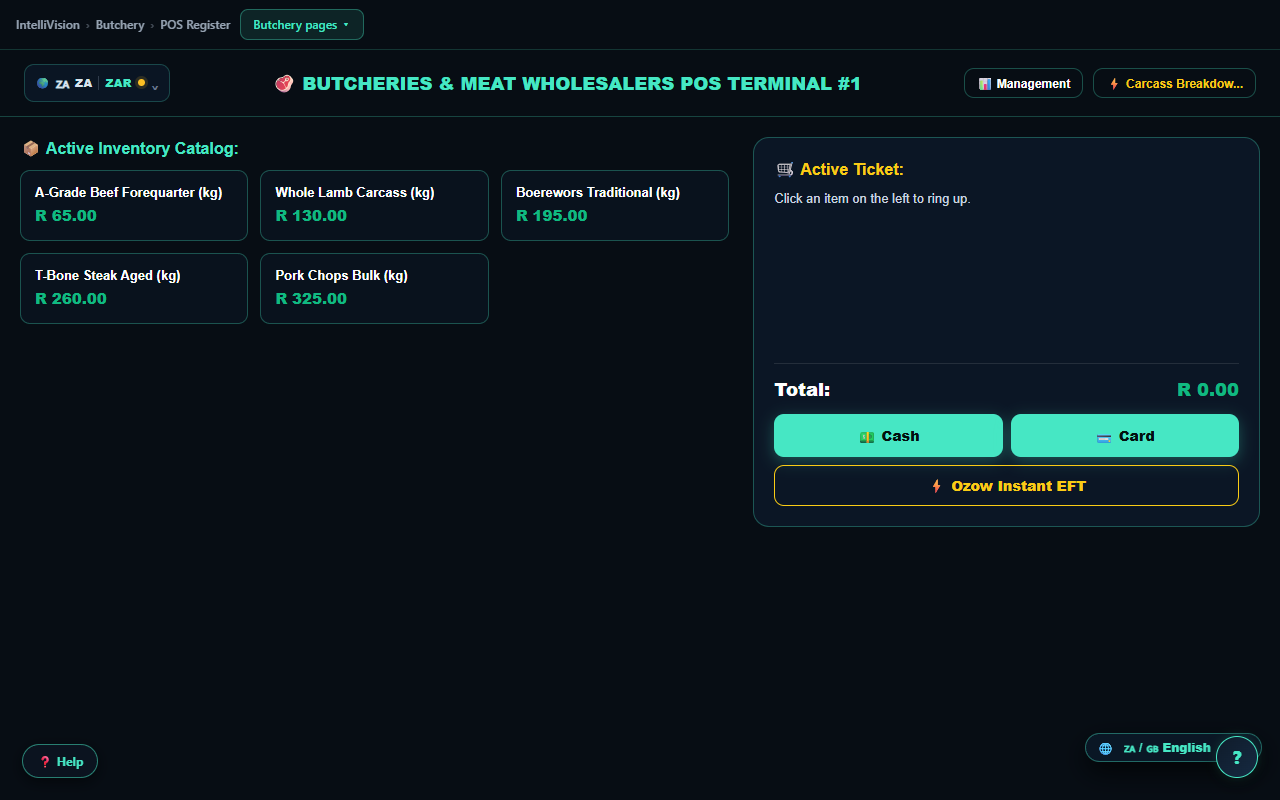
scaleWeightUpdate browser event when it does. But nothing listens for that event: a repository-wide search of every page in this product returns zero matches for it outside the one engine file that dispatches it. Every "per kg" product on these three tills — A-Grade Beef Forequarter (kg), Whole Lamb Carcass (kg), Live Weaner Cattle (kg), and so on — is a fixed-price tap tile, priced and rung up exactly like a tin of pilchards on the wholesale till. The kg in the name is a label, not a live reading; there is no auto-tare, no PLU-by-weight lookup, and no scale-pairing screen anywhere in the product yet.
butchery_carcass_yield.html — a design preview. The page is a single static checklist claiming "real-time OCR scale integration," "24/7 IoT cold-chain telemetry" and "100% automated ledger posting"; there is not one button, input or interactive element anywhere on it. Hanging weight, primal-cut yield and cutting-loss variance are not tracked anywhere in the product today.
agriculture_livestock_crops.html ("Grain Silo Moisture Sensors & RFID Herd Genetics") is the same kind of concept page. One control on it is genuinely real, though: "Error Adjustment" opens the platform's actual supervisor-PIN mistake-correction log — the same audited engine used across the product — so a correction logged there is real even though the silo-telemetry and RFID-herd-genetics claims around it are not. The "Dispatch Event Webhook" button beside it only shows an alert; no webhook is sent, and the "Live Connected APIs" chips next to it are static labels, not a verified live connection.
🍽️ 3. Table & Tab (Restaurant / Hospitality)
restaurant_pos.html), and guest houses and boutique-hotel front desks (hospitality_pos.html).
restaurant_pos.html — a flat touch menu grid with no table layout at all. restaurant_floorplan_builder.html is a separate, disconnected page, and the product labels it honestly: "Design preview — this screen is a concept render, not a working tool yet." Its "Auto-Fill Floor Plan," table shapes and "Send to Kitchen KDS" button only rearrange on-screen boxes and show an alert — the order it builds is never written to the ledger and never reaches the real Kitchen Display System described below. A search of the file for drag, draggable or ondrop returns nothing. Earlier drafts of this manual described interactive drag-and-drop table selection here; that claim is removed, not softened.
restaurant_kds.html): genuinely real, and one of the best-built screens in this product — its own source comment says so, and it holds up. Tickets shown are the till's actual live open orders, not sample data, grouped into Grill / Fryer & Sides / Cold Larder by matching item names, each with a live SLA timer that turns amber past 5 minutes and red past 10. "Bump" writes the real order's kitchen status to done; "Recall" reverses the last bump; "86 an Item" flags a real stock item unavailable on the kitchen board without touching its stock count. The board refreshes the instant any till anywhere records a sale, with a 15-second poll as a fallback. Its "Plating AI" camera panel is honestly labelled a design preview on the page itself and points through to Vision Live for the real camera.
Hospitality's own linked concept screens — room-service ordering, spa booking, housekeeping release, night audit and maintenance logging — all open to the same "design preview" banner; none of their buttons write to a real folio, room-status table or ledger. The front-desk till above is the only place a hospitality sale is actually real.
🔧 4. Job & Appointment (Trades / Salon)
salon_pos.html, repair_pos.html, automotive_pos.html, trades_pos.html) that share a family resemblance but not a checkout.
⛽ 5. Lane & Fleet (Fuel / Logistics / Wash)
logistics_pos.html brands itself "Logistics Fleet & Freight Transport" and is the single shared screen for courier and fleet-freight work; there is no separate "Transport Fleets" till.
🎟️ 6. Community & Venue (Events / NPO)
events_pos.html, fitness_pos.html, nonprofit_pos.html, funeral_pos.html).
@media print — spelled-out amount in words included.💰 Money & Financial Compliance
IntelliVision maintains an integrated, double-entry general ledger in local IndexedDB storage. Every
financial action posts balanced debits and credits — postJournal() enforces exact integer-cent
equality on every write, with no rounding "plug" line ever inserted to force a balance. This chapter covers
your books, purchases, VAT201, payroll, the sector compliance packs, trade debtors, and encrypted backups —
written from the same engine that posts your till sales, not a separate description of it.
📚 3.1 Your Books: Ledger, Trial Balance & the Honest SARS Workflow
Every sector has its own Books page (for example retail_accounting.html, restaurant_accounting.html) — the home screen for your general ledger. A parallel whole-business view lives at owner_financial_pnl_ledger.html, reading the same underlying tables.
Seven live figures, not typed-in numbers
| Tile | What it shows | Where it comes from |
|---|---|---|
| Month Revenue | Sales this month | Sum of 4xxx sales accounts |
| Month Expenses | Purchases & operating costs this month | Sum of 5xxx/6xxx expense accounts |
| Net Profit | Revenue less expenses | Computed from the two tiles above |
| Output VAT (2150) | VAT collected on sales | Sum of GL account 2150 |
| Input VAT (1200) | VAT reclaimable on purchases | Sum of GL account 1200 |
| Debtors Control (1100) | Total owed by trade-account customers | Sum of GL account 1100 — ties to §3.6 |
| Cash & Bank (1000+1010) | Till float plus bank/settlement balance | Sum of GL accounts 1000 and 1010 |
A Mini Trial Balance card lists your top accounts by activity with a live BALANCED/UNBALANCED badge, and a Double-Entry General Ledger Audit Journal table below it lists every posted row (an honest "No postings yet" message shows until your first transaction). Both read real rows — there is nothing to see until you sell, buy or pay something.
The Books page re-reads the ledger automatically the moment a sale posts anywhere on this device, so you don't need to refresh the tab to see a new sale land in the totals above.
On the restaurant Books page you'll find a button labelled Authorize & Preview VAT201 Return
(Demo); on 25 other sector Books pages you'll find one labelled Preview VAT201
Certificate (Demo). Both are exactly what their label says — a demo preview, gated behind a PIN
prompt (currently the demo PIN 9999). Entering it shows a message that says outright:
"Nothing was submitted to SARS. Use these figures with your practitioner or SARS eFiling." No
network call is made and nothing about a filing is written to your ledger. Use the real, computed figures
from §3.3 below and file them yourself on SARS eFiling — exactly as the callout there says.
Short of that button, the rest of the same card is real: a Current Period SARS VAT201 Breakdown table shows standard-rated sales, output VAT, input VAT and net VAT payable computed live from your ledger, plus a Filing Period control bar for the active bimonthly period.
Some sector Books pages carry auxiliary cards for sector-specific ledgers (for example agriculture's Diesel Refund & Silo Valuation cards). Where a card is tagged Connected Mode it needs the cloud sync that isn't built yet; where it's tagged Coming soon, take that at face value — both tags are the product's own honest labels, not ours.
An Export General Ledger (CSV) button also sits on this page. Until 20 August 2026 it only showed a confirmation message and produced no file; it now writes a real CSV of your actual general ledger entries through the same export engine Chapter 4 describes, and says so honestly if it cannot. For your ledger plus every other table — orders, customers, trial balance and a full JSON archive — use data_export.html (Chapter 4).
Two linked screens that are previews today, not postings
A Fixed Asset Register link on the Books page opens fixed_assets_register.html, which lists capital assets with a monthly depreciation schedule per item. It's a real screen, but its Register New Capital Asset and Post Monthly Depr[eciation] buttons currently show a confirmation message describing the journal they'd post (for example "Debited Account 6500... Credited Account 1550...") — no asset row is saved and no depreciation journal actually reaches your ledger yet. Treat the screen as a design preview of the coming feature, not a working asset register.
A separate Merchant Settlement Reconciliation screen at merchant_settlement_reconciliation.html is built to match your Speedpoint card-terminal batches against bank deposits. It's the same story: real layout, but the Import Daily Bank Statement button is a demo preview — it does not connect to FNB, Standard Bank or any bank, and the "142 transactions imported, 100% matched" message it shows is a fixed demo result, not your actual settlement data.
📦 3.2 Purchases, GRV Stock Receiving & Input VAT
Operating through purchases_expenses.html and hardware_grv_receiving_portal.html, store purchasing follows a disciplined supply-chain loop, all of it posting through the same accounting engine as the Books page above.
- Reorder Suggestions: items below their safety-stock threshold get a
suggested reorder quantity:
Suggested = Max(Threshold × 2 - Stock, Threshold). - Purchase Order Generation: a formal PO (
PO-10024style numbering) captures supplier, line costs and quantities against that supplier. - Goods Received Voucher (GRV): receiving staff confirm arrived
quantities and cost. Stock increases immediately and unit cost recalculates on a weighted average:
New Cost = ((Old Stock × Old Cost) + (Received Qty × New Cost)) / (Old Stock + Received Qty). - General Ledger Posting: receiving a GRV posts automatically — debits the relevant expense account for the net-of-VAT cost (5000 Stock Purchases for ordinary stock; category-dependent for other purchase types — 6000 Rent, 6100 Utilities, 6200 Fuel, 6300 Wages, 1500 for capital items, 6900 for everything else), debits Input VAT (GL 1200) for the 15% VAT portion, and credits Trade Accounts Payable (GL 2100) for the total including VAT.
For purchases that aren't a stock GRV — rent, utilities, fuel, wages, or a one-off expense — Record Purchase / Expense on the Purchases & Operating Expenses page posts the same way, picking the expense account from the category you choose and warning you if input VAT is being claimed without a supplier VAT number on file.
Supplier Accounts Payable (AP) Balances and a Purchases & Expense Ledger list every supplier's outstanding balance and every posted purchase. Settle a Supplier Account posts a payment that debits the AP balance down and credits your cash or bank account.
The same page also carries shortcuts to the VAT201 figures sheet and period lock — those are covered fully in §3.3, right below, so they aren't repeated here.
🏛️ 3.3 VAT201 Periods, Settlement & Period Locking
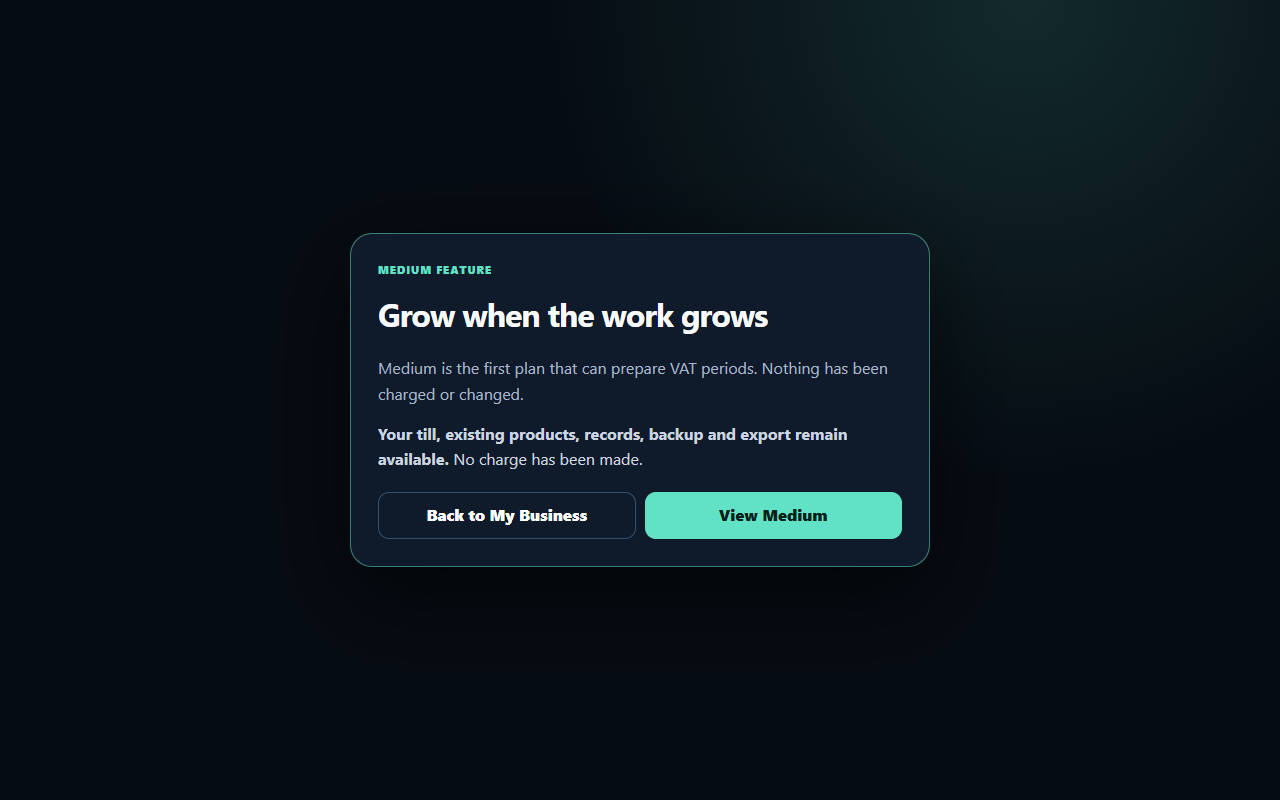
The vat201_period.html screen aggregates all date-effective sales output tax and supplier input tax into official South African VAT cycles. Category B (the default) runs bi-monthly, ending in even months — e.g. Period 2026/01–2026/02 ends February, which is a valid Category B close. Categories A (odd-month bi-monthly), C (monthly, turnover > R30m), D (six-monthly farming ≤ R1.5m) and E (annual letting companies) are also configured.
If your business isn't VAT registered, the screen says so plainly — "Not VAT registered" — rather than showing fabricated figures, and links out to Tax Configuration if you need to change that.
That answer governs far more than this one screen. Your registration status is read in exactly one place, and every till on the platform posts through it. If you are not a registered VAT vendor, no till charges VAT: the full amount the customer pays is revenue, not one cent is posted to Output VAT (GL 2150) — there is no zero row either, so 2150 never appears in your trial balance at all — a discount comes off revenue with no tax carved out of it, a refund reverses exactly what the sale posted, and your slips and till screens stop showing a VAT line, because printing one would be representing a VAT charge you are not entitled to make. Register later and the answer flips for new sales only: postings already made are never rewritten, because every sale carries the status it was rung up under, so a refund long afterwards still reverses what that sale actually did. ✓ Not a VAT vendor? No till charges VAT and nothing reaches Output VAT
IntelliVision computes exact, ledger-balanced totals for Fields 1 (Standard Rated Sales), Field 4 (Zero-Rated Sales), Field 14 (Total Output Tax), Field 15 (Capital Goods Input), Field 16 (Standard Input Tax), and Field 19 (Net VAT Payable or Refundable). These figures are prepared for the merchant or tax practitioner to type directly into SARS eFiling. IntelliVision never files directly with SARS or simulates automatic approval.
The figures grid is sign-aware: a credit note reduces sales and output VAT rather than inflating them, and it's proven against a hand-worked example spanning a credit note and a year boundary — Nov–Dec output VAT nets to R165 after a R115 credit note, and the January sale correctly lands output tax in the following Jan–Feb period, not the one just closed.
Period Locking Mechanics
Once you've filed a period on eFiling, click Lock Period. Locking does three things:
- Freezes every sale, purchase and expense on or before the period end against retrospective editing — attempting to post there afterwards is rejected, and so is a post-dated attempt to slip in before an earlier lock (no backdated holes).
- Posts a closing journal clearing the period's Output VAT (GL 2150) and Input VAT (GL 1200) balances into VAT Control (GL 2160) — credited when you owe SARS, debited when you're due a refund.
- Records the lock against the period so it can never be run twice.
👥 3.4 Statutory Payroll & SARS EMP201 Processing
The payroll engine at payroll.html — the Statutory Payroll & Tax Center — runs employee wages against South Africa's statutory tables and posts a balanced salary journal. Two senior-reviewed anchor figures prove the arithmetic rather than merely describing it:
- PAYE (annualized model): Gross Annualized Remuneration → Annual Tax from Bracket → deduct age-band rebate → ÷ 12 for monthly PAYE. On R25,000/mo (under 65) that's exactly R3,483.08; on R8,000/mo it's R3.75 — not zero, which is the classic silent bug this table avoids (an annual rebate applied monthly would wrongly zero out PAYE below the threshold).
- UIF: 1% employee + 1% employer, capped at the statutory monthly ceiling — R177.12 each side once monthly remuneration reaches R17,712.
- Skills Development Levy (SDL): 1% employer levy, automatically exempt while your annualized payroll stays under R500,000 — and it switches on the month you cross it (R58,000/mo × 12 = R696k triggers R580 SDL that month).
- Accounting Journal: debits Gross Salaries (GL 5100), debits UIF Employer Contribution (GL 5110) and SDL Statutory Expense (GL 5120) when those apply, credits SARS PAYE Withholding (GL 2200), credits UIF Payable — employee plus employer — (GL 2210), credits SARS SDL Payable (GL 2220), and credits Bank (GL 1010) for the net pay actually going out.
- A given month can only be run once — trying to re-run it is refused, as is running a month outside the loaded tax table's effective date range.
The SARS EMP201 Statutory Return Summary gives you the exact PAYE, UIF and SDL totals due for the month in the CCYYMM period format eFiling expects, ready to type in. It's honest about what it can't do yet too: the Employment Tax Incentive line shows an explicit R0.00, "ETI not calculated — claim manually if applicable" rather than silently omitting it or guessing.
It is a downloadable schedule of the SARS source codes your tax practitioner needs — Code 3601 (Income), 3699 (Gross Remuneration), 4102 (PAYE), 4103 (Total Tax), 4141 (UIF, employee + employer), 4142 (SDL) and 4149 (Total) — aggregated per employee across the March–February tax year, for capturing into SARS's own e@syFile software during your EMP501 biannual reconciliation. It is not a generated EMP501 return and it does not issue IRP5 tax certificates — the engine is deliberately built so that no artifact it produces is ever labelled IRP5.
Employee Pay Configuration sets up each worker's package; Monthly Payslip Distribution lists who's due a payslip once a run completes.
🧾 3.5 Sector Compliance Packs: Diesel, Section 18A & Trust Accounts
Three specialised compliance kits sit alongside the general ledger for the sectors that need them. All three compute from a single versioned config file, and all three are honest about their own limits — each shows a caveat on screen, and each caveat is repeated below rather than left buried.
Diesel Refund & Logbook Rebate (agriculture, logistics, petrol)
Log litres and their use (for example "Tractor — primary production") and the engine totals litres and multiplies by a configured refund rate per litre — currently R3.74/ℓ — to give a running eligible claim.
The rate is explicitly flagged provisional in its own config and the screen is required to show a note that diesel refund rates move with fuel-levy adjustments — verify the current rate with SARS before claiming. Only genuinely eligible use (primary production on farming land) qualifies; the logbook exists to record that use, not just the litres.
Section 18A Donor Receipts (non-profit)
nonprofit_section18a_grants.html issues real, sequentially
numbered receipts (prefixed S18A-) once your organisation's SARS PBO number is on file — it
refuses to issue one before that. Chapter 2's community-and-venue archetype covers the receipt screen's
full mechanics (field validation, audit-log persistence, the printable certificate); the two things worth
repeating for the bookkeeper here are that a receipt is only valid once your PBO approval is real, and
that this screen does not track grant spend against a project budget — the project field
is free text, not a monitored budget line.
Trust Accounting (professional services — attorneys, agents)
professional_trust_retainers.html runs a genuine per-client trust ledger: a client's balance can never go negative, and that rule is enforced before any withdrawal is written, not caught afterwards by a report — the write simply never happens if it would overdraw that one client, even though other clients' funds sit in the same pooled trust bank account. Interest earned on the trust account posts to a dedicated liability (GL 2310) and never counts as your income. When you transfer an earned fee out of trust, it posts as two linked journal entries sharing one reference — the client's trust drawdown and your business's fee income move together, never one without the other. An invariant check ties the trust bank balance (GL 1300) to the sum of what's owed to clients plus accrued interest (GL 2300 + GL 2310) to the cent, on demand.
The product's own configuration labels this a "demo trust ledger — not a compliant attorneys/estate-agents trust accounting system." There's no FICA workflow, no section 86(4) trust-account structure, and no audit report generation. Treat it as a genuine, correctly-invariant ledger mechanism you can build on, not a drop-in replacement for a regulated trust accounting package.
📑 3.6 Customer Accounts, Credit Limits & Debtor Statements
Trade customer credit is managed through wholesale_trade_debtors.html. Everything described in this section — the debtor accounts, the credit-limit guard, the aging buckets, the statements and the tie-back to GL 1100 Debtors Control — runs behind one on-account tender class, and since 20 August 2026 every till that offers a trade account reaches it: this back-office screen's account tools, Wholesale's "30-Day Trade Credit", Hardware's "Charge to Trade Credit" and Restaurant's "Charge to Corporate Tab" all land in the same debtors book.
TRADE CREDIT from Wholesale and Hardware,
CORPORATE TAB from Restaurant — and the engine only recognised the literal word
ACCOUNT, so every on-account sale fell through to the bank account. A wholesale
"30-Day Trade Credit" sale of R19,450.00 debited GL 1010 Bank: money the merchant had not
received, booked as though the customer had paid electronically that instant, with no debtor row, no
statement line and no credit-limit check. The Restaurant till's own success message even said it had posted
to Debtors Control while it was posting to Bank.
- Tender labels are now classified rather than string-matched: the on-account family (account, on account, tab, trade credit, trade account, corporate tab, house account, credit account, N-day credit) all resolve to one class, and that class posts to GL 1100 Debtors Control. The same R19,450.00 sale now debits 1100, moves no bank or cash, and leaves the customer owing R19,450.00.
- The fail-closed credit-limit guard runs for every on-account tender whatever the till calls it, and an on-account sale with no account selected is refused outright — no order, no ledger rows, no half-posting.
- All three tills now pick a real trade account loaded from the debtors book and pass its id, so the balance, the statement and the aging all see the sale. Hardware's page-local available-credit variable, which reset to R107,850.00 on every reload, is gone.
- Credit Limits Enforced at the Account Engine: the account
engine itself fails closed — a sale that would push a customer's balance over their credit limit throws
before anything is written, so no order is created and the balance doesn't move, and an unknown
or mistyped debtor reference is rejected the same way. This is proven directly against
wholesale_trade_debtors.html's own account screen (its "Test Account Sale" control surfaces the block as an explicit "FAIL-CLOSED ENFORCEMENT" message). It is not yet uniform at every till's own checkout button — which sector tills actually run this check before charging a sale to an account, and which don't, is covered precisely in Chapter 1's till walkthrough; this section describes the account and its engine, not each till's checkout button. - FIFO Payment Allocation: a payment allocates against the oldest outstanding invoice first, then the next — proven against a worked example (R300 then R400 owed, a R350 receipt allocates R300 to the first invoice and R50 to the second).
- Aging Schedules: Current / 30 / 60 / 90+ day buckets that always sum exactly to the account balance.
- Running-Balance Statements: one-click statement generation and printing, showing invoice numbers, debits, credits and a running balance line by line.
- Opening Accounts: a new trade account is created with a name and an optional credit limit — leave the limit blank for unlimited. Step-by-step account setup and charging a sale to it from the till are walked through in Chapter 1; this chapter covers what the account becomes once it exists.
- Ties to the Books, to the cent: the total of every debtor account equals the Debtors Control balance on the Books page (GL 1100) — the page checks this live, not just at month-end. That tie now covers the tills too. Until 20 August 2026 it held only for sales entered through this screen's own account tools, because they were the only sales that touched GL 1100 at all — a trade-credit or corporate-tab sale rung on a till never entered the reconciliation, so both figures could be internally consistent and still understate what your customers owed you. Every on-account tender now posts to 1100 whichever till rang it, so the reconciliation covers the whole debtors book.
- WhatsApp Statement Delivery: a debtor statement can be shared straight to WhatsApp, using the same real share mechanism documented under Chapter 1's receipt-sharing entry — it isn't a separate, unbuilt feature.
🛡️ 3.7 Encrypted Backups & 'Verified by Restoring' Protocol
✓ Encrypted backup and restore, proven by restoring (Gate G23)
Disaster recovery in system_health.html uses WebCrypto AES-GCM 256-bit
encryption with PBKDF2 key derivation (150,000 iterations, 16-byte random salt, 12-byte initialization
vector), wrapped in a versioned envelope format (iv-backup-1, magic bytes IVBK1).
A backup file that has never been tested is not a reliable safety net. Before any database wipe or
restore occurs, the file envelope format, decryption key, table integrity and row counts are fully
decrypted and validated in memory first. If the passphrase is wrong or the file is corrupt, the restore
aborts cleanly and your existing database is untouched. Restoring is deliberately made hard to trigger
by accident: you must type the file's passphrase and then type the word RESTORE to confirm
before anything is wiped.
System Health also shows the timestamp of your last successful backup, so you can see at a glance whether you're overdue for a fresh one.
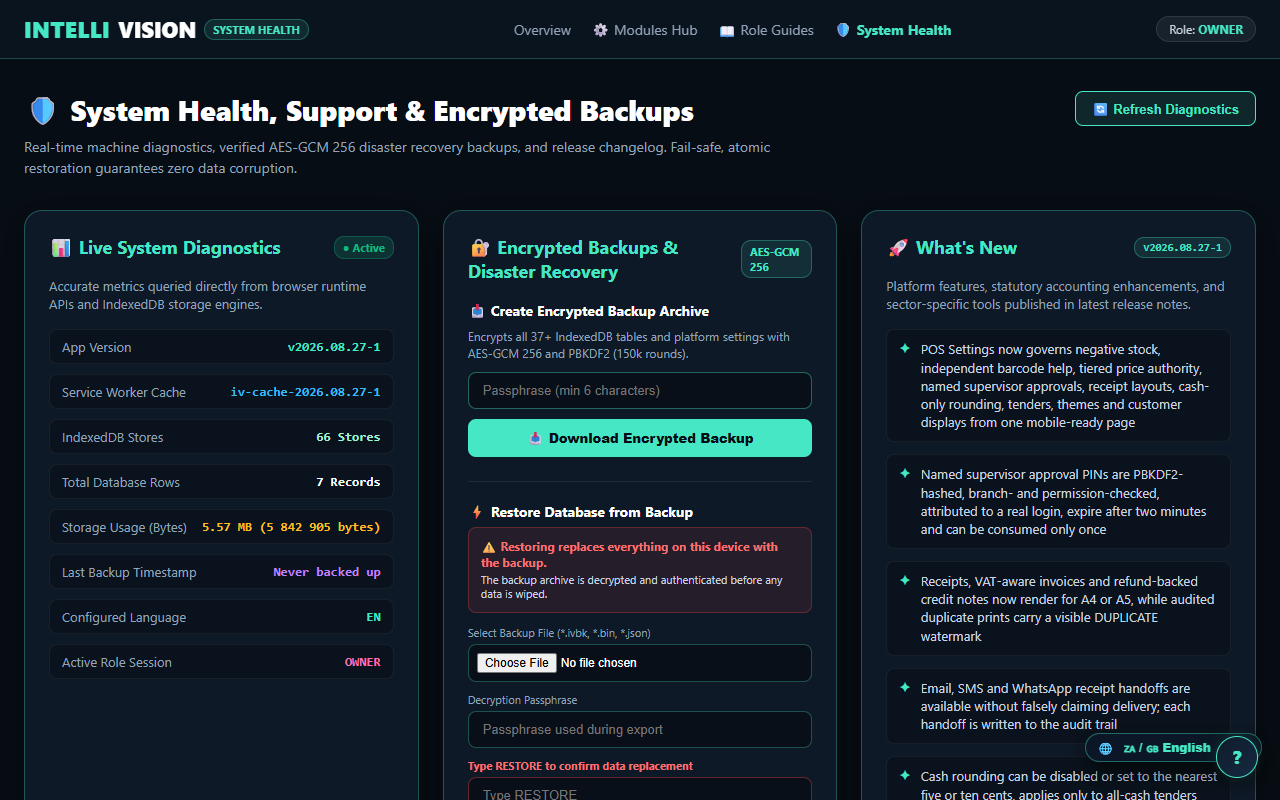
⚙️ Platform Architecture & Operations
Technical specifications, multilingual capabilities, offline and Connected Mode mechanics, licensing rules, the certified hardware shop, multi-branch views, in-app help, and complete data portability.
🌍 4.1 15 Pan-African & Global Languages
IntelliVision operates natively in 15 languages, supporting local South African languages, East/West African regional commerce languages, and European trade languages:
| Language | Code | Regions | Text Direction |
|---|---|---|---|
| English | en | South Africa / Global | Left-to-Right (LTR) |
| isiZulu | zu | South Africa (KwaZulu-Natal, Gauteng) | Left-to-Right (LTR) |
| isiXhosa | xh | South Africa (Eastern Cape, Western Cape) | Left-to-Right (LTR) |
| Afrikaans | af | South Africa / Namibia | Left-to-Right (LTR) |
| Sesotho | st | South Africa / Lesotho | Left-to-Right (LTR) |
| Setswana | tn | Botswana / South Africa | Left-to-Right (LTR) |
| Kiswahili | sw | Kenya / Tanzania / East Africa | Left-to-Right (LTR) |
| Yorùbá | yo | Nigeria / West Africa | Left-to-Right (LTR) |
| Igbo | ig | Nigeria | Left-to-Right (LTR) |
| Hausa | ha | Nigeria / Ghana / Sahel | Left-to-Right (LTR) |
| chiShona | sn | Zimbabwe | Left-to-Right (LTR) |
| Français | fr | DR Congo / Rwanda / West Africa | Left-to-Right (LTR) |
| Português | pt | Mozambique / Angola | Left-to-Right (LTR) |
| العربية | ar | UAE / North Africa | Right-to-Left (RTL) |
| Deutsch | de | Namibia / Europe | Left-to-Right (LTR) |
Switch languages at any time using the global language selector in the page header or preferences menu. Every button label and prompt on screen swaps immediately — the page never reloads, because the switch works by re-translating the text already on the page from a downloaded language file, not by fetching a new page.
⚡ 4.2 Offline Architecture, Load-Shedding Resilience & Connected Mode
IntelliVision is engineered as an offline-first Progressive Web Application (PWA). All application code, stylesheets, and UI assets are cached locally on your device via the Service Worker (sw.js), which downloads and versions its own cache the moment you first open the app.
All database tables — including products, customers, sales orders, stock batches, and general ledger entries — reside directly inside your browser's local IndexedDB storage. Nothing leaves your device unless you explicitly choose Connected Mode below.
Connected Mode today: an honest, opt-in heartbeat
Connected Mode is off by default on every install. If you switch it on, IntelliVision sends a small, whitelisted check-in — an install ID, the app version, your business type, your referral code if you have one, today's sale and order counts, and a fixed active-till count of 1. That is the whole payload — no customer, staff or product data, and nothing configurable — and nothing is sent at all unless both the opt-in is on and a connection endpoint is configured. If your connection drops, the check-in queues locally and sends once you're back online.
🔄 4.3 Updates, Changelog & System Diagnostics
When a new version is released, the Service Worker downloads updated assets in the background. On your next session, IntelliVision upgrades transparently without interrupting ongoing till shifts.
Review the latest platform enhancements by visiting system_health.html and opening the What's New / Release Notes viewer (sourced directly from release_notes.json).
🔑 4.4 Modular Licensing, 14-Day Trial & Offline Unlock Codes
IntelliVision operates on an honest, transparent licensing model enforced by owner_modules_hub.html:
- Free Forever Till Tier: Single-till POS operations, product catalog, barcode scanning, and basic setup wizard are completely free forever without time limits — the free tier is always unlocked, on every install.
- 14-Day Full Feature Trial: Fresh installations start an automatic 14-day trial the moment you first open the app, silently, with no card or signup required, giving unrestricted access to Business dashboards, cash management, and Compliance+ accounting modules.
- Trial Countdown: A days-remaining banner appears on virtually every screen while your trial is running — everywhere except the manual, the data export tool, and the shop itself — and the Modules Hub carries its own large countdown display.
- Fail-Closed, Never Silent: If a trial ends before you unlock a paid tier, the gated page doesn't quietly break — it shows an honest upgrade screen explaining what ended, an unlock-code box, and links back to the free till, the Modules Hub, and pricing.
- Subscription Tiers & Status: The Modules Hub renders your current tier, trial state, and every gated module's required tier live from the licensing manifest — nothing hardcoded.
- Gated Module Directory: A full table of every module and which page patterns it covers, with its required tier and your current status against it — filterable by tier (All / Free / Business / Compliance+) and searchable by name or route (module search box).
- Which Tier Does This Page Need? Every page in the platform is matched against the module list by its filename, so the gate always knows the right tier to ask for before it lets you in.
- Offline Unlock Codes: To unlock premium modules on air-gapped or offline devices, enter your key in the format
IV-<tier>-<expiryYYYYMM>-<check>(e.g.IV-compliance-202612-a1b2c3d4) on the Modules Hub or directly on the upgrade screen. Keys validate offline using a SHA-256 signature — the free tier never needs one.
Unlock codes today are an offline-friendly stopgap — validated locally, not phoned home. They deter casual bypass; they are not a full licensing service. Real online license sync and automatic renewals arrive with Connected Mode.
Tier pricing is being finalized ahead of launch — see pricing.html for current figures rather than this manual, so you always see the same number in one place.
🛒 4.5 The IntelliVision Hardware Shop
Certified thermal printers, Bluetooth barcode scanners, certified scale kits, and IVOPS Vision camera kits can be ordered straight from shop.html — hardware chosen to work with the till out of the box, not a generic marketplace listing.
Checkout today is EFT-only: build your order, capture your delivery details, and submit — the shop hands you a payment reference to settle by instant EFT rather than taking a card on the page. Your order history stays on the shop for this install so you can find a past payment reference again.
The AI detection previews shown on today's vision screens return fixed example results for evaluation, not a live read of your camera — real analysis is never faked in the browser, it happens on the kit or not at all.
🏬 4.6 Multi-Branch Views & Consolidated Reporting
Once you open a second location, IntelliVision gives you both a per-branch view and a consolidated group view — real figures, not a mock-up.
This is deepest today on the retail till family: live consolidated group revenue, basket counts and average basket value, a per-branch breakdown, tools to add or rename a branch, and a fast switcher for which branch you're currently stamping sales against. Most other sectors' branch screens are still marked in the product itself as a design preview of what's coming, and the depth varies sector to sector. The full, sector-by-sector picture is in this manual's back-office chapter.
❓ 4.7 Contextual In-App Help & Role Guides
The contextual help drawer (powered by universal_help.js) appears on all 365 of the platform's pages — every till, dashboard, admin, setup and shop screen, with no exception. Clicking the floating ? button in the bottom-right corner lists the functions that actually exist on the screen you are standing on, filtered to your signed-in role, and offers a direct link into the section of this manual that covers that screen.
For staff role guidelines, open role_guides_knowledge_base.html to review daily checklists for the Cashier & Till Operator, Waiter & Service Staff, Workshop Mechanic & Tech, Responsible Pharmacist, Weighbridge Operator, and General Manager & Owner roles.
💾 4.8 Complete Data Portability ('Leave Anytime')
You own your business data. data_export.html lets you export your complete database at any time with zero vendor lock-in — the export/re-import round trip is tested by the IntelliVision team on their own data before every release, not just claimed.
| Export Format | Target Systems | Header Columns |
|---|---|---|
| Product CSV — Square | Square | Token, Item Name, Variation Name, SKU, Description, Category, Price, Quantity |
| Product CSV — Loyverse | Loyverse | Handle, SKU, Name, Category, Price, Cost, Barcode, In stock |
| Product CSV — Yoco | Yoco | Name, SKU, Price, Cost, Quantity |
| Product CSV — Generic | Excel, Shopify, most POS imports | SKU, Name, Category, Price, Cost, Stock, Barcode |
| Orders & Sales CSV | Excel, Google Sheets, Power BI | order_number, date, total, payment_method, status (legacy-import history rows are flagged) |
| Trade Debtors CSV | Accounting packages, CRM | Name, Email, Phone, Balance |
| General Ledger CSV | Xero, Sage, QuickBooks, Pastel | date, account_code, side, amount, description |
| Trial Balance CSV | Your accountant or tax practitioner | account_code, debits, credits, net |
Full Portability JSON Archive (iv-export-1) |
Another IntelliVision install, or a recovery drill | Every store and every application preference, unencrypted, in one file |
Pick a saved iv-export-1 file and type RESTORE to confirm — this is a destructive action, so it asks you to mean it. The file's format and integrity are checked before a single row is wiped; a bad or unreadable file is rejected up front rather than leaving you with a half-replaced database.
This full JSON archive is an open data-portability export, not the encrypted backup described in the Money & Compliance chapter — use this one to migrate or duplicate an install; use the encrypted backup to protect against data loss on the same install.
🏢 Back Office: Dashboards, Staff & Branches
Everything an owner or manager uses to watch the business, manage the team, and run more than one
location. Access to every screen in this chapter is decided the same way as the rest of the platform:
by the filename IntelliVision is loading, not by hiding individual buttons. Your session
role — owner, manager, cashier or staff — carries a
fixed set of capabilities (manage, sell, view), and each page
requires one of those three before it will render. Chapter 1 covers the general rule; this chapter tells
you exactly which capability each back-office screen below requires — including two cases where the
rule is more permissive than you might expect.
📊 5.1 Executive Dashboards
Unlike Setup, Accounting or Branches, a dashboard filename doesn't match the platform's manage-only
pattern, so it requires only the view capability — and every role holds
view. In practice that means a cashier or general staff login can open the
dashboard and see the same turnover, order count and stock alerts as the owner. If you want
the day's numbers kept to management only, that's a conversation about which login you hand to the
till, not a setting on this screen.
Today's numbers: real, not decoration
The eight tiles at the top of every *_dashboard.html page are computed, not typed in.
They read straight from the same local order, payment and stock tables your till writes to — nothing
here is a placeholder.
| Tile | What it shows | Where the number comes from |
|---|---|---|
| Today's Sales | Till turnover so far today | Sum of every order's total placed today |
| Today's Transactions | Basket count so far today | Count of today's orders; shows an explicit "No sales yet" note at zero rather than a bare 0 |
| No-sales note | Replaces the transaction count when nothing has sold today | Swaps automatically once the first order lands |
| 7-Day Sales | Rolling 7-day turnover | Sum of every order placed in the last 7 days |
| Top Selling Product | Highest-volume item | Line items grouped by name, ranked by quantity sold |
| Payment Split (Cash) | Cash drawer intake | Sum of payments recorded with a cash method |
| Payment Split (Card / EFT) | Everything not cash | Sum of the remaining payment methods |
| Inventory Low Stock Alert | Count of SKUs below 5 units | Live count against your stock table |
Leave the dashboard open in one browser tab and ring up a sale in another: the tiles above update
within a second, without a manual refresh. A local BroadcastChannel message fires every
time a sale posts, and the dashboard recomputes the moment it hears one.
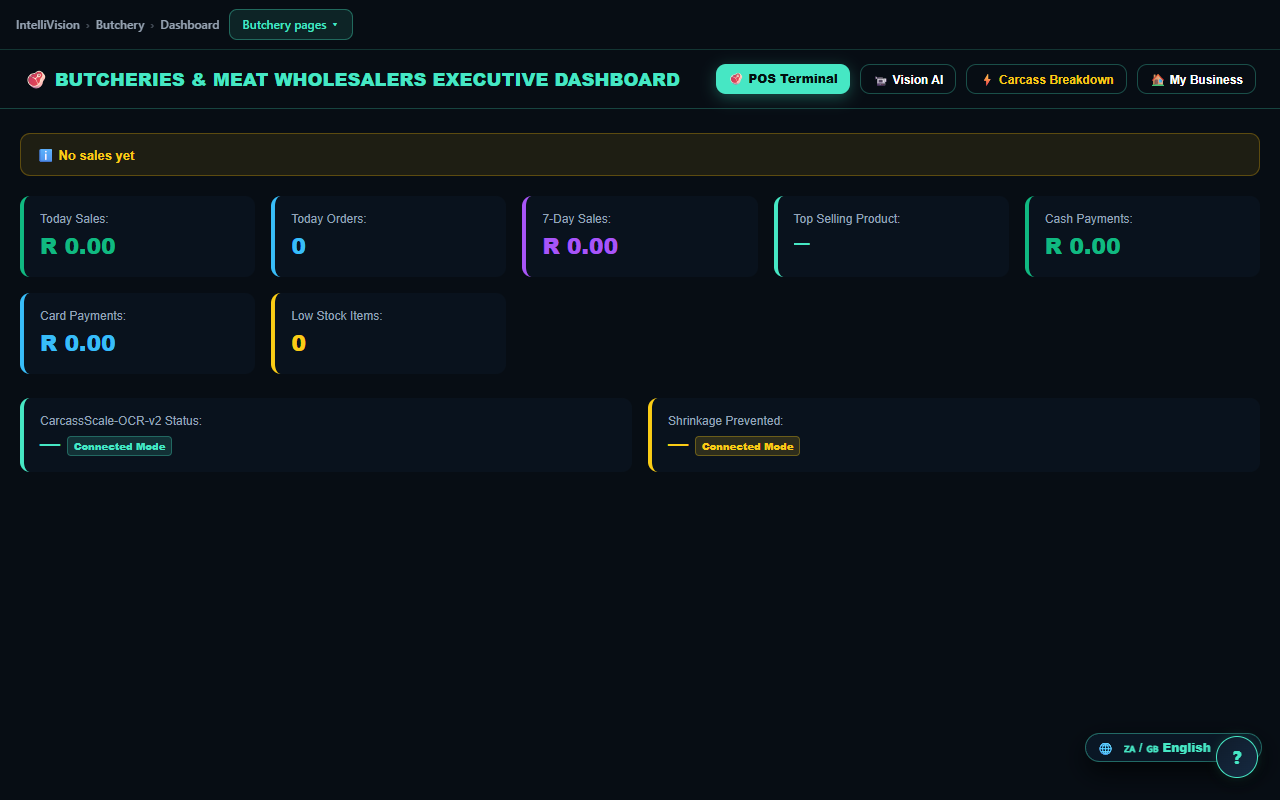
Mistake Recovery: a real, durable record — but not a ledger correction
The 🛡️ Mistake Recovery button on every dashboard opens a real modal asking for a supervisor PIN, a reason code and notes. Pressing Record adjustment writes a durable row into this device's audit log — it survives a reload, and it carries a real SHA-256 computed over the record itself, so the entry can be checked later rather than merely trusted. Two honest limits, both now stated on the modal itself: the PIN is recorded, not verified (this product has no supervisor-PIN store, so any non-empty PIN is accepted and simply written down as the person claiming authorisation), and no general ledger journal is posted. Until 20 August 2026 the confirmation claimed one was. To actually reverse money, use the till's refund / return control or post the correction in Books; use this form to record who decided what, and why.
Camera and sensor tiles: preview only
Three controls on the dashboard show a confirmation message when pressed but do not talk to any real hardware or sensor feed today:
- ⚡ Poll IoT Telemetry — confirms a poll was dispatched; there is no connected sensor to poll.
- ⚡ Manage & Calibrate Stream — appears on the Shoplifting AI Turnstile, ESL Dynamic Sync, and Till Turnover Variance widgets; each confirms a command was sent to a stream that isn't actually connected.
- ⚙️ Calibrate YOLOv9 — confirms the camera model was calibrated; no camera model runs against this page.
Playback & replay: the navigation is real
📼 Open Playback & Replay Console and each camera tile's Replay Clip
link are genuine navigation, not alerts — both take you to
video_playback_investigation.html. What that console can actually play back is covered in
the Vision & Cameras chapter.
🧑🤝🧑 5.2 Staff, Roles & Clock-In
Like the dashboard, a *_staff.html filename doesn't match the platform's manage-only
pattern, so it opens for every signed-in role, including staff itself — worth knowing
before you hand out logins, since these pages can show role PINs (see below).
Nineteen of the sector Staff & Roles pages (agriculture, automotive, construction, ecommerce, education, events, fitness, freelancer, healthcare, logistics, manufacturing, nonprofit, professional, property, rentals, repair, salon, trades, wholesale) open on a role simulator that carries this banner at the top of the page: "this screen is a concept render, not a working tool yet." Inside it:
- Role tabs switch between three sample roles for the sector (e.g. Farm Owner / GM, Field Agronomist, Livestock Manager) and redraw the card below.
- Granted / Restricted screen lists redraw with the tab, but the lists are fixed per sample role in the page's own script, not read from your actual team or setup.
- PASSCODE / PIN display shows a fixed four-digit demo value per sample role (not a PIN anyone can actually sign in with).
- Test Manager Override shows a confirmation message naming the sample PIN; it does not check a PIN or unlock anything.
- Clock In With Biometrics on this page shows a confirmation with a fake GPS stamp and records nothing — the real version of this control is below.
Sectors outside that list (retail included) show a static screenshot of the same design instead of a working simulator.
This is a separate page from the sector simulator above, and it is honest about exactly which half of it works: its own banner reads "Facial matching on this screen is a design preview. The PIN clock-in below is real." The flow:
- A staff member is asked for POPIA consent before any camera capture UI exists on the page at all — not merely hidden, genuinely absent until consent is granted.
- Consenting writes a timestamped, audited consent record and only then reveals the capture screen.
- Withdrawing consent writes its own audited record and removes the capture screen again.
- PIN clock-in works today: a 4-digit PIN writes a real, audited clock-in record your payroll can trust — this is the fallback offered at every step, and the one the page itself calls real.
- Facial clock-in shows a fixed "99.8% match" and is labelled a simulation on the button itself; treat it as a preview of the camera-kit feature described later in this manual, not a working face check today.
Proven end-to-end — consent gating, withdrawal, and the PIN fallback all writing real audit rows —
by the platform's automated test suite. No menu currently links to this page; open
it directly at staff_biometric_facial_clockin.html until that's wired up.
Every Staff & Roles page, simulator or screenshot alike, points you to where the real work happens: Team & Logins to add sign-ins and set passwords, Staff Roles for the working roles-and-daily-tasks reference, and Payroll for salaries (Chapter 3, §3.4).
🏬 5.3 Branches & Multi-Location
Branch screens require the manage capability, so only owner and
manager logins can open them. A cashier or staff login that
tries is shown a full-page Access Restricted message with a Sign-out button — the page fails closed
rather than showing anything underneath.
One more fact worth stating plainly before the rest of this section: only Retail has a fully working multi-branch console today. Every other sector's Branches page is a preview.
The real console: retail_multibranch.html
retail_multibranch.html is a genuine multi-location console: every branch record, every
figure on it, and the isolation between branches are backed by real local data, not sample numbers.
| Control | What it does |
|---|---|
| Store Locations grid | Lists every registered branch with today's live revenue and basket count |
| Group Revenue Today | Consolidated turnover across every branch, computed fresh each load |
| Total Baskets Served | Consolidated order count across every branch |
| Average Basket | Group revenue divided by group orders |
| Stores Configured | The branch count, shown twice — "Stores Configured" in the summary card and "Total Branches Registered" above the grid — both reading the same live count |
| Per-branch card | Each branch's own revenue and basket count, isolated from every other branch's sales |
| 🔄 Refresh Metrics | Recomputes every figure on the page on demand |
| Live auto-refresh | The whole view recomputes itself within a second of any branch posting a sale, over the same local BroadcastChannel used by the dashboard |
Adding, renaming and switching branches
Add a branch
+ Add New Branch opens a small dialog asking only for a store name.
Create Branch assigns the next sequential branch identifier (e.g.
BRANCH-02) automatically and gives the new branch its own fully isolated sales and
stock ledger — nothing about it shares numbers with any other branch until you post a sale there.
Rename a branch
The pencil icon on any branch card opens a dialog pre-filled with that branch's current name.
Save Changes updates the branch's display name in place; its identifier, its sales history and its stock stay exactly as they were.
Switch which branch you're stamping
Switch to Branch on any non-active card — or the Fast Branch Switcher dropdown at the top of the page — makes that branch the active one. Every POS sale and stock entry from that point stamps the newly active branch until you switch again.
Multi-branch previews outside Retail
Even on the real console, cross-site sync over the internet is future work, correctly labelled on the page itself: Coming soon: cross-site branch sync over the internet. Today's consolidated totals work because every branch's data lives in the same local database on the same device — that's genuine, just not yet spread across separate shops on separate networks.
Three different preview patterns exist, each labelled by the product's
own banner and pointing back to retail_multibranch.html as "the working branch tools":
- Seven sectors (automotive, events, freelancer, nonprofit, professional, rentals, repair) show three sample branch cards with live-looking status text. 📦 Create Inter-Branch Transfer shows a confirmation message and creates nothing. View Branch Dashboard on each card is real navigation, but all three cards currently open the same sector dashboard rather than a dashboard scoped to that specific branch.
- Restaurant has its own bespoke preview with a 5-outlet switcher and a stock transfer queue. APPROVE on a pending transfer shows a confirmation message and approves nothing. TRACK GPS on an in-transit transfer has no action behind it at all — clicking it does nothing.
- Salon has its own bespoke preview of a 5-salon chain checkout screen. COMPLETE SALON CHECKOUT shows a confirmation message; no sale is recorded.
- Seventeen sectors (agriculture, butchery, carwash, construction, ecommerce, education, fitness, funeral, hardware, healthcare, liquor, logistics, manufacturing, petrol, property, trades, wholesale) show a single static screenshot with no interactive controls at all. The banner's own link to Branches (per-branch and consolidated figures) is the only working thing on the page.
👑 5.4 The Platform Admin Console
super_admin_dashboard.html is IntelliVision's own console for overseeing every merchant
tenant on the platform — support tickets, tenant fleet totals, and infrastructure status. It is not a
tool for running your own business, and nothing in the rest of this manual depends on it. Like every
other admin-pattern screen, it requires the manage capability to open.
| Control | What actually happens |
|---|---|
| ⚡ Live Pulse Refresh | Re-reads the tenant and metrics data from the local platform database — a genuine refresh, with a confirmation message on top |
| Tab bar (Merchants Fleet / Support / Infrastructure / Tax & Currency) | Switches which panel is visible — works as shown |
| + Simulate Incoming Ticket | Adds one fixed sample ticket to the on-screen list only, exactly as its own label says — not written to the platform's real ticket store |
| 🔍 Inspect Tenant | Shows a confirmation naming the merchant, then opens retail_dashboard.html —
the same page every time, regardless of which merchant you picked, not that merchant's own
data |
| ✓ Mark Resolved | Writes the resolution to the platform's real ticket store — this one is genuine |
📹 Vision & Cameras
Several screens use the word "camera." This chapter tells you exactly which are real, with nothing hidden: the supermarket Vision Control Room (6.1) and IVOPS Vision camera kit pairing (6.2) are built and gate-proven. The Control Room records real local motion evidence, accepts real Edge Node events, matches evidence to actual receipts, records investigation outcomes and exports an incident register. The Camera AI Workbench (6.3) uses the same real motion engine in a tuning lab. The remaining 27 sector "Vision AI" showcase pages (6.4), the Camera & IoT Manager (6.5) and the Playback & Investigation console (6.6) remain design previews.
🎥 6.1 Vision Live — the till's own camera
vision_live.html turns the device your till already runs on — tablet, laptop or USB webcam — into a real motion watcher. It uses getUserMedia to read the device's own camera (browsers cannot speak RTSP, so IP cameras are the kit's job, not this page's) and a genuine frame-difference engine to detect movement. No object recognition runs here — the page does not pretend a tablet camera can identify people or items, only that something changed in the frame.
Start watching / Stop
Start watching is fail-closed by design: the camera never streams before you click it, and the status pill says so ("off — the camera never starts by itself") until you do. Once running, motion events record while the settings below allow it. Stop releases the camera stream immediately and stops recording — no lingering background capture.
Settings
Keep evidence (days): how long a motion event and its snapshot stay before automatic deletion. Whatever you set, storage is also hard-capped at 200 events, so snapshots can never fill the device even if you forget to touch this setting.
Sensitivity (min % change): the minimum share of the frame that has to change before it counts as an event — turn it down to catch smaller movements, up to ignore shadows and flicker. A cooldown field (seconds) sits alongside it so one continuous disturbance logs as one event, not a flood.
Armed from / Armed to: the hours the camera is allowed to record — leave both blank to stay armed whenever you're watching. The window safely wraps past midnight (e.g. 22:00 to 06:00). Outside armed hours the live picture keeps showing on screen, but nothing is recorded or saved.
Save writes all of the above to this device immediately — there is no separate "apply" step.
Events
Every recorded event shows its snapshot, time, severity, review status and whether a sale happened inside the configured 30–300 second window. Select Review evidence to verify its SHA-256 integrity seal, link or remove an actual receipt, record the investigation status and outcome, add a note, download its snapshot or delete that single event. Resolving an event requires an outcome. Export register downloads the complete incident register as CSV; spreadsheet formulas in notes are neutralised before export. Kit events (6.2) appear in the same queue with the camera's name and the Edge Node's own event type and confidence.
Delete all evidence clears every stored event and snapshot on this device at once. There is no undo.
Starting the camera, changing settings, pairing or unlinking the kit, linking receipts, reviewing outcomes and deleting evidence are owner/manager-only. A cashier sees "owner or manager access required" and cannot arm a camera or alter an investigation.
📡 6.2 The IVOPS Vision camera kit
The IVOPS Vision kit (dedicated cameras plus an Edge Node, sold from the hardware shop) is where the heavier seeing happens — person detection, tracking, night IR. Pair it once on vision_live.html and its events join the same evidence timeline as the till's own camera, with the same sale-context and NO-SALE honesty, the same retention and the same 200-event cap. The till talks straight to the Edge Node over your shop network; footage and events never route through IntelliVision's own servers.
If the customer already owns ONVIF/RTSP cameras or a DVR/NVR, install the IntelliVision Camera Bridge for Windows instead of replacing the system. The bridge discovers ONVIF devices, accepts direct RTSP streams, adds multiple recorder channels, encrypts camera passwords for the signed-in Windows user, starts with Windows and refuses to mark a source online until Test picture receives a real frame. Standard cameras contribute real MOTION evidence only; they are never relabelled as person/object AI.
Camera Bridge / Edge Node address + pairing code
Enter the local Camera Bridge or Edge Node address (e.g. http://192.168.1.50:8090) and the pairing code shown by that app/device. Pairing is fail-closed: a wrong code stores nothing at all and the pill reads "the kit refused this pairing token" — nothing is saved locally until the bridge itself accepts. A successful pair shows the site name, the agent's version, and every camera's real online/offline state (an offline camera says so, plainly, rather than being hidden).
The Windows bridge executable and this till-side link share the published pairing contract and are gate-proven together. Every physical camera/recorder model still needs Test picture during commissioning; advanced detection accuracy belongs to the certified hardware product itself.
Unlink forgets the pairing and stops polling the kit instantly — no confirmation dialog, no delay. Kit events already pulled into your evidence timeline stay there; unlinking only stops new ones arriving.
kit:<camera name>; a person detection lands at HIGH severity carrying the kit's own confidence score. If the kit goes offline, the till keeps selling regardless — pairing status just shows "unreachable right now" and quietly keeps retrying.
🔬 6.3 Camera AI Workbench — tuning the same real engine
camera_ai_workbench.html is a separate page from Vision Live: a lab for testing and tuning the same on-device motion engine, not a second place to watch your counter. Its own banner states the scope plainly — "Basic frame-difference motion detection runs client-side in your browser. Heavy neural models (person tracking, object recognition) run dedicated on the IVOPS Vision camera kit + Edge Node."
Video input source
Enable Webcam requests your device's real camera and analyzes actual frames for genuine pixel-level change.
Run Synthetic Demo feeds the same real engine a generated moving square instead of a camera, so you can see genuine motion detection working with no camera attached. It also runs automatically if webcam access is denied or unavailable.
Stop Video Stream releases the camera (if one was active) and halts analysis.
An Engine Capabilities box states, honestly, what's running: Motion Detection — Active (client CV); Object Recognition — Camera Kit Only; Model Identifier — frame-diff-motion-v1. That is a direct read of the engine's own honesty function, not marketing copy.
Motion parameters & log
Pixel Difference Threshold and Sampling Rate sliders tune the live engine while it runs — raise the threshold to ignore small lighting shifts, lower the sampling interval to check frames more often.
Clear Log empties the on-screen motion event list for this session.
💾 Record persists a real detected motion event with model frame-diff-motion-v1. Operator note: this saves to the general audit log, a different table from Vision Live's evidence timeline (6.1) — events you record here will not appear in Vision Live's Events list, and vice versa. They are two views onto the same engine, not one shared feed.
🧪 6.4 The remaining sector "Vision AI" pages — concept previews
Supermarket/retail is the exception: retail_vision_ai.html now opens the working Control Room. The other 27 sector showcase pages carry an on-page design-preview banner. Their model panels and sample detections are concepts and do not read a camera unless a page explicitly reports a real paired Edge Node.
The remaining 27 pages are not all the same page
Twenty-two of the remaining twenty-seven are built on one shared interactive template — the one described in detail
below. The remaining five (butchery_vision_ai.html, carwash_vision_ai.html,
funeral_vision_ai.html, liquor_vision_ai.html, petrol_vision_ai.html)
are much smaller pages with none of that template's controls — no IP field, no Grab Snapshot, no
toolset tabs, no Simulate Event — and they never load the detection engine. What they do carry is a real
one: a live panel wired to your actual camera-kit pairing, described next.
The engine behind the 22 template pages
Each of those 23 pages asks the engine for "the model for my industry." Only 8 industries actually have one defined — retail, restaurant, hardware, hospitality, automotive, healthcare, logistics and agriculture. Every other industry silently receives the retail model instead; there is no error and no indication on screen that a substitution happened. (The five static pages above ask nothing — their model names are hand-typed headings, not registry lookups.)
"Running inference" always returns the same fixed example detections for that industry's model, regardless of what the camera sees — the function accepts a frame as its argument and never reads it. Nothing about the picture on screen changes what comes back.
The "toolset" tabs you can click browse this same fixed registry — each industry's three named tools (for example retail's overhead pass-around scanner, turnstile loss tagger and shelf-label verifier) are description text pulled from the registry, not independently working detectors.
On a remaining shared-template page (restaurant_vision_ai.html is representative)
IP camera address field + Connect: typing an address and clicking Connect shows a scripted "Handshake Established" pop-up. No network connection to any camera is actually attempted.
Grab Snapshot shows a scripted "Snapshot Captured" pop-up; no image is captured or stored anywhere.
Switching toolset tabs changes which tab is highlighted, but redraws the identical bounding-box graphic underneath either way — the on-screen overlay does not actually change per tool.
The bounding-box overlay drawn on the video canvas is painted at fixed coordinates every second — it is not tracking anything in a video feed, because there is no live feed underneath it.
One genuinely live detail on the page: the on-screen clock in the corner does tick with the real current time, once a second.
+ Simulate Event manufactures a new incident row in the alert feed on demand — it is explicitly a simulate button, not a detection.
Alert Floor Supervisor (WhatsApp Push) shows a scripted confirmation pop-up. No WhatsApp message is sent from this page.
Replay on an incident, and "Open Full Investigation & MP4 Export", both link to the Playback & Investigation console — which is itself a concept preview (see 6.6). Following the link does not open real footage.
The useful control on each remaining preview page is its link to the working Vision Control Room. It opens the real local evidence and Edge Node workflow.
⚙️ Camera Setup in the page navigation opens the Camera & IoT Manager (6.5) — also a concept preview.
📼 Playback Replay in the page navigation opens the Playback & Investigation console (6.6) — also a concept preview.
⚙️ 6.5 Camera & IoT Manager — concept preview
camera_manager.html is a mockup of a future multi-camera provisioning console — assign a camera to a purpose (sweethearting loss, ALPR gate, plating AI, vault biometrics), point it at an IP address, and deploy. Every control below produces a scripted confirmation only; no camera is actually added, discovered or configured on your network. Unlike the sector Vision AI pages (6.4), this page carries no on-screen preview banner warning you of that — treat every button here as a preview until this note.
| Control | What actually happens when you click it |
|---|---|
| + Add New Camera / Device | Opens a form (name, location, AI purpose, IP, port, confidence slider). Submitting it shows a scripted "Successfully Provisioned" pop-up; nothing is saved. |
| 🔍 Scan LAN (ONVIF Auto-Discover) | Shows a scripted pop-up naming two fixed, hardcoded IP addresses as "discovered." No network scan of your LAN is performed. |
| Provisioned camera list | Four camera cards are hardcoded into the page (till overhead, yard ALPR gate, kitchen plating, pharmacy vault) — they are examples, not devices you own. |
| ⚙️ Edit (on a camera card) | Opens the same form pre-filled with that card's example values. Saving shows the same scripted confirmation as Add. |
| Operational Purpose & AI Model dropdown | Lets you pick from 12 named purposes (e.g. sweethearting loss, ALPR gate, weighbridge). Selecting one only changes what the confirmation pop-up will say — it does not connect a real model. |
| 💾 Save & Deploy Camera AI | Closes the form and shows a scripted "Successfully Provisioned" pop-up quoting the location, purpose and stream address you typed back at you. Nothing is deployed. |
A naming quirk worth knowing: "Camera Setup" and "Camera Manager" links elsewhere in the product (including on the sector Vision AI pages) actually open device_camera_setup.html, not this page's own address — but they are the same page in every way that matters; the two files differ by a single blank line. Whichever address you land on, you're looking at the same concept preview.
📼 6.6 Playback & Investigation — concept preview
video_playback_investigation.html renders a synchronized 4-camera review console with a scrubbable incident timeline and a receipt-sync panel. None of it is connected to a real camera, a real recording, or your real sales — it is a fully scripted demonstration of a console that has not been built. It carries no on-screen preview banner either, so treat every control below as a preview.
| Control | What actually happens when you click it |
|---|---|
| 1x1 / 2x2 Quad / 3x3 Grid | Shows a scripted "Switched to N-camera layout mode" pop-up; the four camera panels are fixed, hardcoded text and icons regardless of layout chosen. |
| ⏸️ Pause / ▶️ Play | Toggles a label and stops/starts a decorative playhead animation that advances on a fixed timer — no real video exists to play or pause. |
| ⏪ -10s / +10s ⏩ | Nudges the same decorative playhead a fixed visual distance along the timeline bar. |
| Click anywhere on the timeline | Jumps the decorative playhead to that position. There is no underlying video to seek. |
| A colored event marker, or a receipt line | Shows a scripted "Jumped to [description]" pop-up. The four event markers and five receipt lines are hardcoded example data, not your actual sales or footage. |
| 🧾 POS Receipt Sync panel | A fixed example receipt (#INV-889410) with five hardcoded line items — it does not look up any real receipt, even though it carries a search box. |
| 📌 Bookmark Incident & Notify Store Owner | Shows a scripted confirmation. No bookmark is saved and no message is sent to anyone. |
This control used to show a pop-up claiming a "Court-Admissible Evidence Video Clip" had been generated, naming an invented SHA-256 hash and telling you the file had downloaded successfully. Nothing was ever hashed, cut or written. Since 20 August 2026 the button is labelled Court clip export — not built and says so when pressed: the four camera panels on this console are still images, so there is no recording here to cut and nothing to hand to a court. The camera evidence this product really keeps is Vision Live's snapshot timeline (6.1), and the pop-up now points you there.
Naming quirk: every "Playback Replay" link elsewhere in the product opens video_playback_investigation.html, not playback.html — but the two files are byte-identical, so there is nothing functionally different to find on either address.
📋 Vision & Cameras at a glance
| Screen | Status |
|---|---|
| Supermarket Vision Control Room | Real. Owner/manager-gated motion evidence, sale matching, SHA-256 integrity checks, investigation outcomes and incident-register export. |
| IVOPS Vision camera kit pairing | Real. Fail-closed pairing, exactly-once event ingestion, gate-proven. |
| Camera AI Workbench | Real. Same detection engine as Vision Live, in a tuning/testing lab; saves to a separate log. |
| Remaining 27 sector "Vision AI" pages | Concept previews, self-labelled. Retail now redirects to the real supermarket Vision Control Room. |
| Camera & IoT Manager / device_camera_setup.html | Concept preview, not self-labelled. Every control is a scripted pop-up. |
| Playback & Investigation / video_playback_investigation.html | Concept preview, not self-labelled. Every control is a scripted pop-up; export claims are fabricated. |
🛒 Hardware Shop, Auto-Replenishment & Integrations
Five screens in this chapter promise commerce and integrations. Two are real and working: the hardware shop you actually check out from, and the tax/currency cockpit behind every till's price. One is a genuine mix — real sales figures sitting directly above a fabricated customer fleet, in the same console. The other two — auto-replenishment and the API integrations hub — show confident buttons that produce a success message and nothing else. This chapter says exactly which is which, screen by screen, before you rely on any of them.
| Screen | What it's for | Who can open it | Status |
|---|---|---|---|
| shop.html | Order certified hardware, EFT only | Anyone with the link — public storefront, no sign-in by design | Real, gate-certified (G27 + G52) |
| auto_replenishment_inventory.html | Low-stock alerts & supplier purchase orders | Any signed-in role, including staff | Preview — every button is a fixed alert |
| api_integrations_hub.html | "Test" the platform's 8 API clusters | Any signed-in role, including staff | Preview — every test shows fixed sample data |
| super_admin_dashboard.html | Multi-tenant fleet, support desk, infrastructure | Owner / Manager only | Mixed — see 7.4 |
| admin_tax_currency_manager.html | 15-country tax regime & pricing cockpit | Owner / Manager only | Real, working |
🛒 7.1 Ordering Certified Hardware (shop.html)
✓ Certified hardware shop, EFT-only (Gate G27)
shop.html lists a gate-certified hardware catalogue — printers, a cash drawer, a barcode scanner, a scale, an IVOPS Vision camera kit, and two starter bundles. The page tries to load the live list from shop_catalog.json first and falls back to a bundled default list if that request fails, so the catalogue still renders offline. Every price is marked Draft Pricing / Launch Pricing (Draft) in the catalogue data itself — check the shop for the current number rather than this manual, so you only ever see one price.
The scale kit's own listing describes it as sending "live weights into per-kg lines." That's true of the physical scale as hardware — it is not true of what happens after you plug it in today. universal_hardware_bridge.js:223 reads the scale's serial port and dispatches a scaleWeightUpdate browser event, but nothing in the product listens for that event — a search of every HTML and JS file in the platform turns up the one dispatch and zero matching listeners, on any till, including the two weigh-sector tills that load the bridge. Buying the scale here gets you certified hardware; it does not yet get you a weight in your cart. Treat that part of the wiring as not built, not "coming soon" with a date.
Build your order
Click Add to Cart on any catalogue item to add one unit; adding the same item again increases its quantity instead of creating a duplicate line.
In the cart panel, the + / − buttons raise or lower a line's quantity one unit at a time; taking a line to zero removes it.
The × button removes a line outright, regardless of its quantity.
Clear at the top of the cart empties the whole order in one click — there is no confirmation prompt, so use it deliberately.
The cart itself lives only in this browser tab's memory while you shop — nothing is saved until you submit the order in Step 2, so reloading the page before then loses it.
Buyer details & submit
Fill in the business/buyer name, phone, email and courier delivery address — all four are required before the form will submit.
If you arrived via a sales agent's link (a ?ref= or ?agent= URL parameter, or a code this browser saved from an earlier visit), the Sales Agent Referral Code field and an "Active Referral Attribution" banner fill in automatically. The banner names a hardware-margin percentage attributed to that agent, read from commission_config.json — the file itself marks this as a draft structure, not a finalized commission policy.
Submit Order (EFT Direct) creates a real order record on this device: a sequential reference in the form IVSHOP-000001, status AWAITING_EFT, saved to this browser's local storage. There is no card capture anywhere in this flow — payment is EFT only, by design, platform-wide. Nothing here confirms the money has actually arrived: the status doesn't change itself, so the shop and the buyer both still have to follow up on the bank transfer directly.
Confirmation, printing & history
Print EFT Invoice on the confirmation screen opens your browser's own print dialog on that confirmation — it's a page printout, not a thermal receipt, and it does not call the ESC/POS hardware bridge.
My Orders in the header lists every order this browser has ever submitted, newest first, each with its reference, status, buyer, date and line items — read from this device's local storage, not from a server.
A separate page, hardware_store.html, shows a similar-looking hardware catalogue but carries its own banner calling itself "a concept render, not a working tool yet." The ordering flow described above — shop.html — is the real one. If you land on the other page looking to buy something, follow its own link back to the working shop.
Unlike every other page in this manual, shop.html loads neither universal_auth.js nor universal_role_access.js — there is no sign-in prompt and no role check on this page at all. Anyone who has the link can build a cart and submit a real EFT order in the business's name.
Agents managing their own referral links use a separate screen, sales_rep_portal.html ("Agent Portal", linked from the shop's header) — not covered in this chapter.
📦 7.2 Auto-Replenishment & Low-Stock Alerts (auto_replenishment_inventory.html)
Every control on this screen is a fixed illustration today, not a live tool. The "items below safety reorder point" table always shows the same two example rows no matter what is actually in stock, and both buttons only display a success message — nothing is created, saved, or sent anywhere.
The low-stock table lists a barcode, description, current stock, safety reorder point, suggested reorder quantity, supplier and estimated cost per item — but those two rows (PPC Cement, Tastic Rice) are written directly into the page's HTML. There is no code on this page that reads your actual inventory to populate or refresh them.
Auto-Generate All Supplier POs shows an alert claiming three purchase orders were generated and suppliers notified, with a fixed total value. No purchase order record is created and no notification is sent — the function only shows the alert text.
Dispatch PO on a single row behaves the same way: an alert claims the PO was emailed to a supplier portal with a GRV expectation logged, and neither actually happens.
The platform's real reorder math lives elsewhere: universal_purchasing.js computes genuine reorder suggestions (Suggested = Max(Threshold × 2 − Stock, Threshold), the same formula this manual documents in §3.1) and real purchase orders and goods-received vouchers, reachable from retail_purchasing.html and hardware_grv_receiving_portal.html. This auto-replenishment screen does not currently connect to that engine.
This screen also has no owner/manager gate: its filename doesn't match the platform's "manage" access pattern, so any signed-in role — including staff — can open it and click these (currently fake) purchasing buttons.
🌐 7.3 API Integrations Hub (api_integrations_hub.html)
This page used to carry a banner reading "8 OF 8 API CLUSTERS 100% OPERATIONAL" over eight tiles each claiming "100% UP". None of the eight clusters is connected to anything outside your device, so since 20 August 2026 the banner reads "0 OF 8 CLUSTERS CONNECTED — DESIGN PREVIEW", every tile reads "not connected", and a design-preview banner sits at the top of the page. The engine behind this page, universal_api_gateway.js, describes itself in its own header comment as a "QUARANTINED HONEST STUB": every one of its methods — across the Payments, Government, Logistics, Messaging, MarketplaceOTA, HardwareIoT, CreditKYC and Accounting clusters — returns a NOT_CONNECTED result and warns in the browser console that external integrations aren't wired. That includes named capabilities like initiateOzowEFT, fileSARSVAT201, createCourierGuyWaybill, syncShopifyCatalog, syncTakealotStock, syncXeroJournal and parseMettlerToledoScale.
Run Full Gateway Ping used to show a canned alert listing all eight clusters "verified" with fixed millisecond figures; it now says plainly that nothing was pinged and that no cluster is connected. It has never called window.IntelliVisionAPI or any of the honest-stub methods above — the page's own script defines a separate, hardcoded set of sample data and never references the gateway object it loads.
Each cluster's own "Dispatch / Test" button (Payments, SARS, Logistics, Vision AI/IoT, WhatsApp, Identity, Ad Networks, Accounting) shows a fixed sample request/response pair for that category. Only the timestamp changes between clicks; the substance never does. Until 20 August 2026 the SARS button answered with an invented eFiling acknowledgement token and a VALIDATED status, and every button ended in a "handshake success" alert — for a request that was never sent. The SARS response now reads NOT_CONNECTED with no token at all, each button says plainly that no request left your device, the cluster tiles read not connected instead of "100% UP", and the page carries a design-preview banner. Nothing on this screen has ever spoken to SARS.
The "Live Gateway Request / Response Telemetry Inspector" panel below the cluster cards shows the same sample payload that the last button click wrote into it — it's a viewer for the fake data above, not an independent live feed.
Despite the "Super Admin" branding in its own header nav, this page carries no owner/manager gate: its filename matches neither the "manage" nor the "sell" access pattern, so it defaults to plain view access — any signed-in role, including staff, can open it.
👑 7.4 Super Admin Command Center (super_admin_dashboard.html)
The top row of this console — Today Sales, Today Orders, 7-Day Sales, Top Selling Product, the Cash/Card split, and Low Stock Count — is computed the same honest way as every other dashboard in this manual: directly from this device's own order, payment and inventory rows, not from placeholders. It updates live over the same BroadcastChannel('iv_sales') mechanism the moment a sale is rung up anywhere on this device.
Five things to know before you trust the rest of this console:
Merchants Fleet
This tab, the MRR/GMV/tills-and-cameras tiles above it, and the "SAAS FLEET ONLINE (99.98%)" badge all come from ten fixed, fictional named businesses (e.g. "SPAR Supermarket Sandton", "Ocean Basket V&A Waterfront") seeded once into this browser's own local database the first time the page loads. None of it is a real other customer's data — this product has no server connecting separate installs together.
Live Pulse Refresh
Re-reads that same seeded list (plus whatever ticket you've added below) and shows a success alert regardless of what changed.
Inspect Tenant
Shows an alert claiming an active impersonation session, then opens retail_dashboard.html — the same generic page every time, regardless of which of the ten fictional names you clicked.
Support & Ticket Command Center
Lists tickets from the same kind of seeded local data. "+ Simulate Incoming Ticket" adds one more fabricated ticket to the top of that list. "Mark Resolved" does genuinely update that ticket's status in the local database and re-renders the list — real within this seeded dataset, just not connected to any real support queue.
Cloud Infrastructure & API Gateways
Camera feed count, a SARS connector marked as fully connected, payment gateway uptime — all decorative static text. Nothing on the page computes or refreshes it, and it is not wired to the honest, not-connected gateway engine described in §7.3. Don't rely on this tab to mean anything is actually connected.
The four tabs (Merchants Fleet, Support, Infrastructure, Tax & Currency) just show and hide these panels — switching tabs doesn't reload or refresh anything underneath.
Admin Guided Tour opens the platform's guided walkthrough engine, if it's loaded on the page.
The Tax & Currency tab's mini preview is the one place this console understates what's real: it shows four countries as fixed markup and labels itself "8 Countries" (super_admin_dashboard.html:250), while the actual engine behind its own "Open Full Tax & Pricing Cockpit" link supports fifteen — see §7.5 for the real, current list.
This console is properly gated: its filename matches the platform's owner/manager-only access pattern, so a cashier or staff login cannot open it — it fails closed to the same "Access Restricted" screen used everywhere else in the product.
🌍 7.5 Tax Regimes & Country Pricing (admin_tax_currency_manager.html)
Unlike the two screens above, this cockpit is genuinely real and working — the same engine (window.IntelliVisionCurrency, in universal_currency_tax_engine.js) that drives the country/tax toolbar on every till.
The cockpit covers 15 countries — South Africa (SARS), Namibia, Botswana, Kenya, Nigeria, Zimbabwe, Ghana, Rwanda, Tanzania, Zambia, Mauritius, the UAE, the UK, the EU and the USA — each card showing its statutory VAT/tax rate, currency, fiscal validity window, and a country price multiplier applied to an example price so you can see the converted amount at a glance.
The region buttons (All 15 Markets / Southern Africa / East Africa / West Africa / International) filter that list down by group.
The expiry badge on each card (Active / Expiring Soon / Expired) is a genuine date calculation against today's date, not a fixed label. The currency conversion, however, runs on a fixed table of default exchange rates written into the engine (universal_currency_tax_engine.js:14-32) — despite this page's own description promising real-time conversions, rates only change when an admin edits them below; nothing fetches a live market rate.
Adjust Rate / Multiplier opens two prompts — new tax rate percentage, new cross-border price multiplier — and, once confirmed, genuinely rewrites that country's regime.
Renew Fiscal Period prompts for a new expiry date and schedule name, then genuinely resets that country's status to active with the new date.
Simulate Tax Period Expiry is a genuine testing control, not theater: it actually sets a chosen country's regime to expired, so you can see the same compliance warning a cashier would see on the till's tax status pill.
All three of the edits above save to this browser's local storage immediately, but they only take effect the next time a till or toolbar page on this device loads or reloads — there's no live push into a till that's already open in another tab. Only switching your own active trading country broadcasts instantly, over a same-tab event the toolbar listens for.
Reset Standard Statutory Defaults clears every saved change and reloads the page back to the shipped rates and dates.
This page is also owner/manager-gated, the same as the console above.
🗺️ 7.6 Other Tools Nearby
A handful of working screens near this chapter have no link pointing to them anywhere in the product today, which means this manual is currently the only way to find them. Listing them here is a map, not a certification — this chapter hasn't audited their behaviour the way it has everything above, so verify anything they claim before relying on it:
- supplier_accounts_payable_reconciliation.html — supplier statement reconciliation and EFT payment-run approval.
- staff_biometric_facial_clockin.html — facial or PIN staff clock-in, with its own POPIA consent capture and withdrawal.
- staff_error_override_simulator.html — a manager-PIN override trainer for common till-error scenarios.
- busser_tablet_dispatch.html — a table-bussing alert tablet for restaurant/hospitality floor staff.
- spar_rewards_member_portal.html — a rewards member card and points-balance screen.
- custom.html — the flexible/custom-edition marketing landing page.